Transaction Management
Card Not Present › Merchant Backoffice › Transaction Management
Search, view, capture, cancel, and reverse transactions — all in one place
Searching Transactions
Navigate to Transactions in the left-hand menu. Use any combination of the filters below to find transactions. All fields are optional — leave blank to see all transactions for the default date range (start of current month to today).
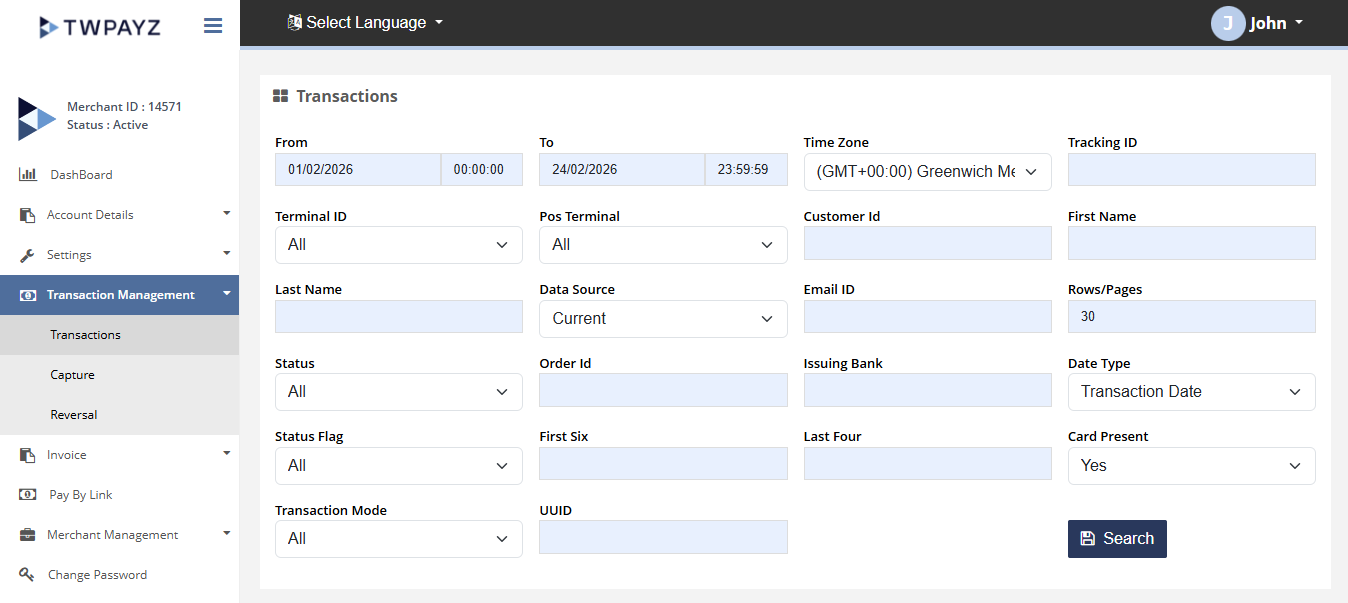
Search Filters
| Filter | What to enter / select |
|---|---|
| From date / To date | Date range with time. Defaults to start of current month to today. Include time for precise filtering (e.g. 00:00:00 to 23:59:59). |
| Tracking ID | The unique TWPayz reference assigned to a transaction. Start with this if you are looking for a specific transaction. |
| Terminal ID | Filter to a specific processing terminal. Useful if you have multiple terminals or currencies. |
| POS Terminal | Specifically filter by card-present (physical terminal) transactions. |
| Order ID | Your own order or reference number used when creating the transaction. |
| Customer ID | Internal customer identifier, if used when creating the transaction. |
| First Name / Last Name | Customer name search — partial names accepted. |
| Email ID | Customer email address used at the time of transaction. |
| Status | Filter by outcome: Authorised, Captured, Declined, Pending, Cancelled, Reversed, Refunded, Chargeback, Failed. |
| Card Present (Y/N) | Y = card-present (terminal) transactions only. N = card-not-present only. Leave blank for all. |
| Issuing Bank | Filter by the customer's card-issuing bank. |
| Currency | Filter by transaction currency (GBP, EUR, USD, etc.). |
| Data Source | Filter by processing channel: eCommerce, POS, Virtual Terminal, Pay by Link, Invoice. |
| Rows/Page | Control how many results appear per page (10, 25, 50, 100). |
Transaction Results Columns
| Column | What it shows |
|---|---|
| Transaction Date | Date and time the transaction was processed |
| Tracking ID | Unique TWPayz reference — click to open full detail view |
| Order ID | Your reference number |
| Order Description | Description entered when the transaction was created |
| Card Holder Name | Name on the card used |
| Customer Email | Customer email (if provided) |
| Payment Mode | Card Present or Card Not Present |
| Payment Brand | Visa / Mastercard / American Express |
| Amount | Transaction value in the processing currency |
| Refund Amount | Amount refunded against this transaction (if any) |
| Currency | Transaction currency |
| Status | Current status of the transaction (see Status Reference page) |
| Remark | Processing note, decline reason, or system message |
| Terminal ID | Which terminal processed this transaction |
| Issuing Bank | The customer's card-issuing bank |
| Last Update Date | When the transaction status was last changed |
Transaction Detail View
Click any Tracking ID in the results to open the full transaction detail. This shows all fields from the results columns plus additional processing information.
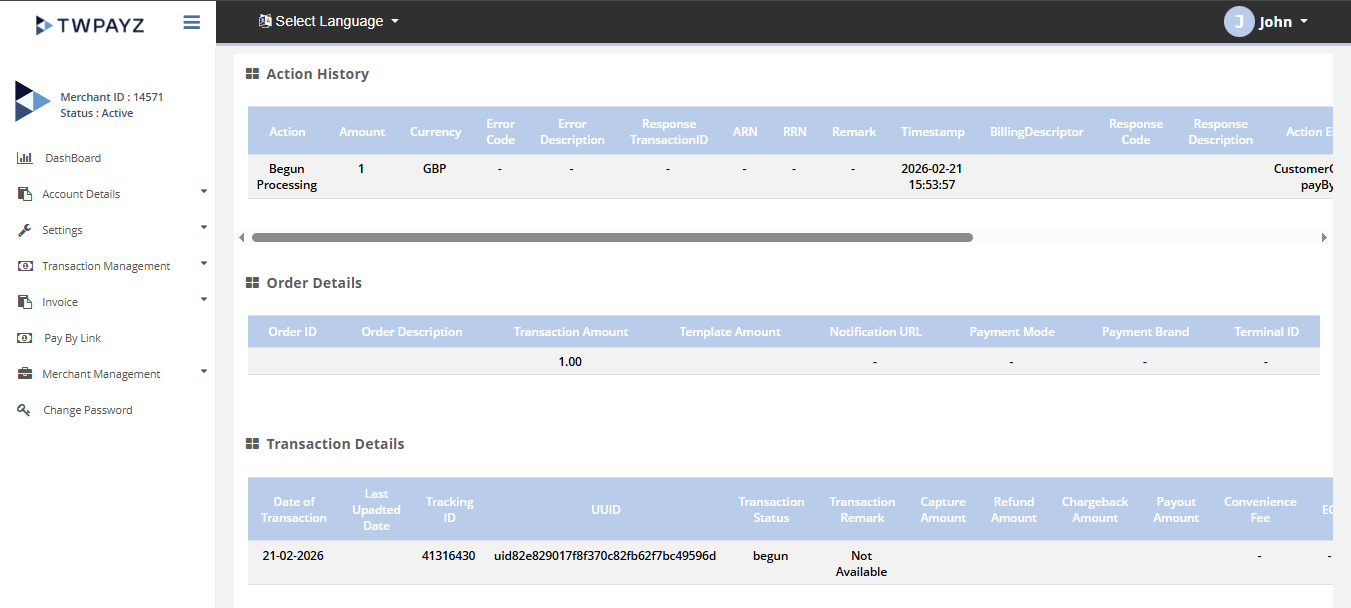
Full Capture
Capture the full authorised amount of a transaction that has been authorised but not yet captured. Common for e-commerce orders where you want to confirm dispatch before collecting funds.
_new.png)
_new.png)
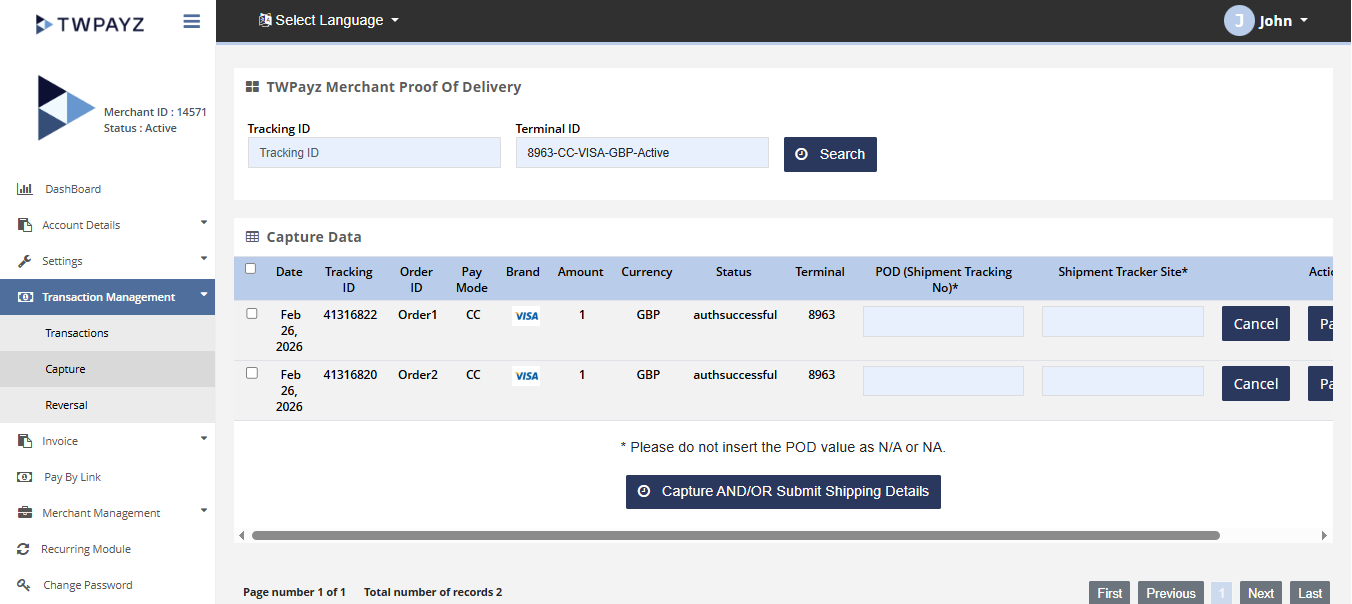
- 1Navigate to Capture in the left-hand menu.List of transactions eligible for capture (status: Authorised).
- 2Search by Tracking ID or Terminal ID to find specific transactions, or scroll through the list.Matching transactions displayed.
- 3Select one or more transactions by checking the checkbox on the left of each row. Multiple transactions can be captured in one action.Selected rows are highlighted.
- 4Enter the Proof of Delivery (POD) reference and Shipment Tracking URL for each selected transaction. Both fields are required before capture can proceed.Required fields completed.
- 5Click Capture and/or Submit Shipping Details.Capture submitted. Transaction status updates to Captured. Funds included in next settlement batch.
Partial Capture
Capture only part of the authorised amount — for example, when only some items from a multi-item order were shipped.
- 1Navigate to Capture. Search for and locate the transaction.Transaction visible in results.
- 2Click the Partial Capture button on the right side of the transaction row (separate from the checkbox).Partial capture amount entry form opens.
- 3Enter the specific amount to capture. This must be less than the full authorised amount.Amount entered.
- 4Submit.Specified amount captured. Remaining authorised balance is governed by the original transaction rules.
Cancel Transaction
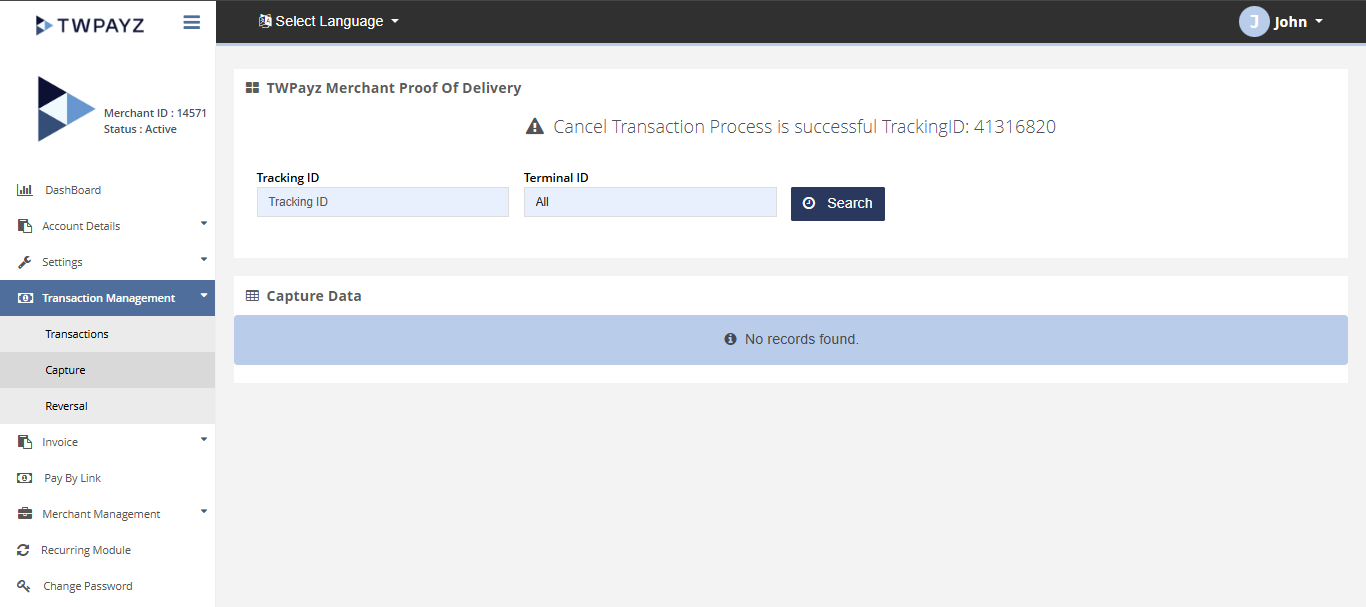
Cancel an authorised-but-uncaptured transaction before settlement. No funds move — the authorisation hold is released back to the customer's card.
- 1Find the transaction in the results list. Status must show Authorised for cancellation to be available.Transaction detail view open.
- 2Click Cancel Transaction.Confirmation prompt appears.
- 3Confirm the cancellation.Status updates to Cancelled. No funds charged to customer. Authorisation hold released.
Reversal
Reverse a captured transaction, returning funds to the customer. Used for post-settlement corrections.
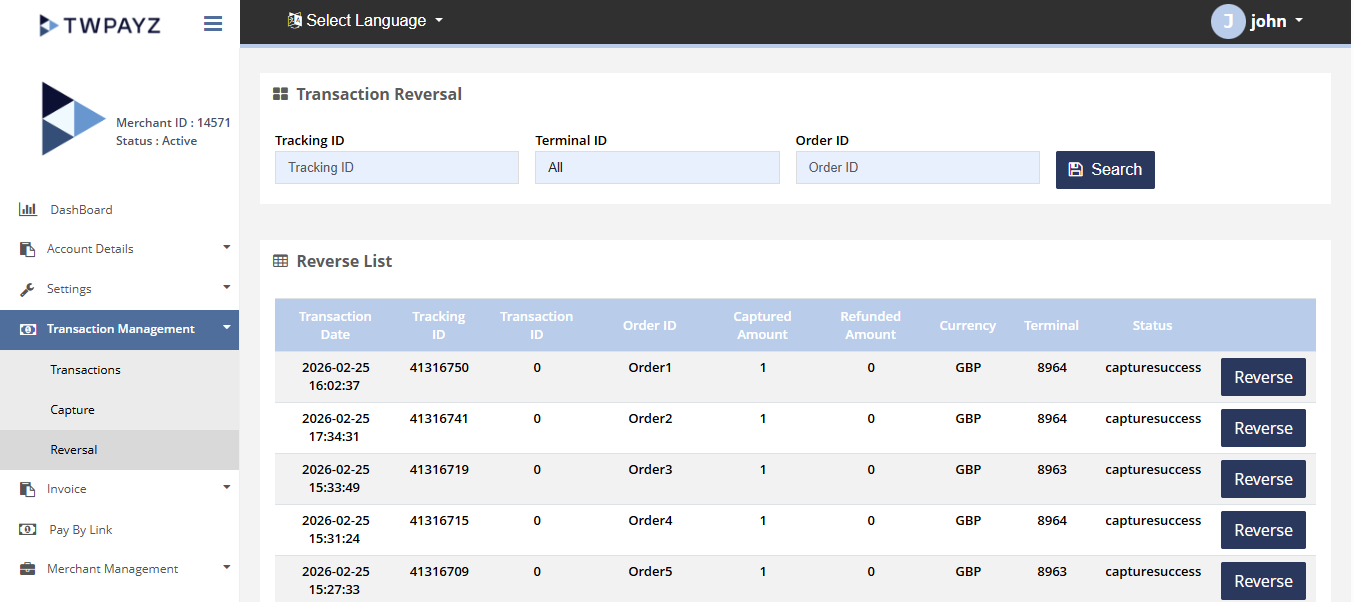
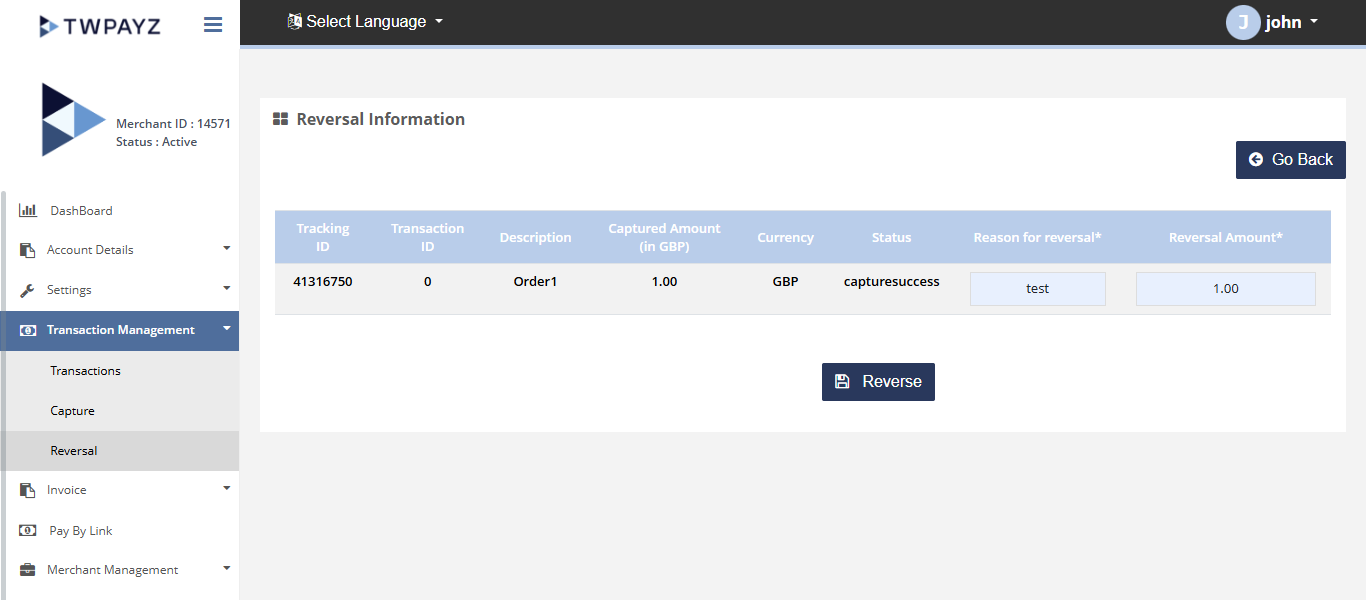
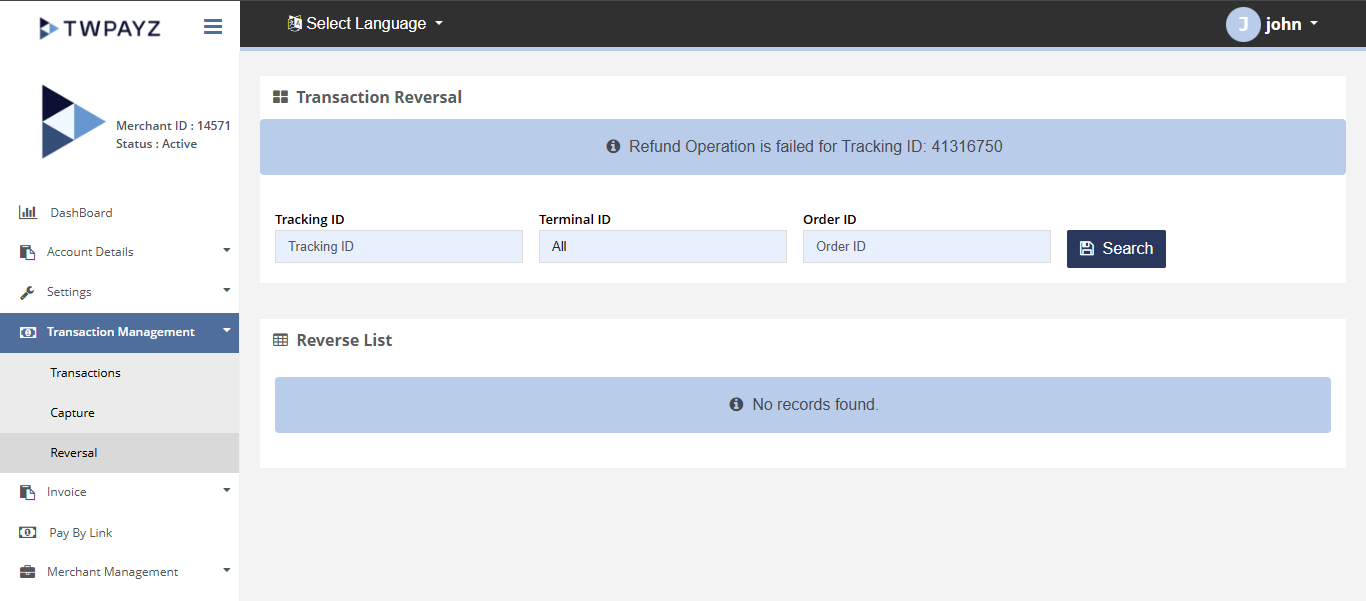
- 1Navigate to Reversal in the left-hand menu, or open the transaction detail and click Reversal.Reversal confirmation screen.
- 2Confirm the reversal.Reversal processed. Funds returned to customer. Status updates to Reversed. Appears as a separate line in reports.