Invoice History
Card Not Present › Invoicing › Invoice History
View, search, and manage all your issued invoices
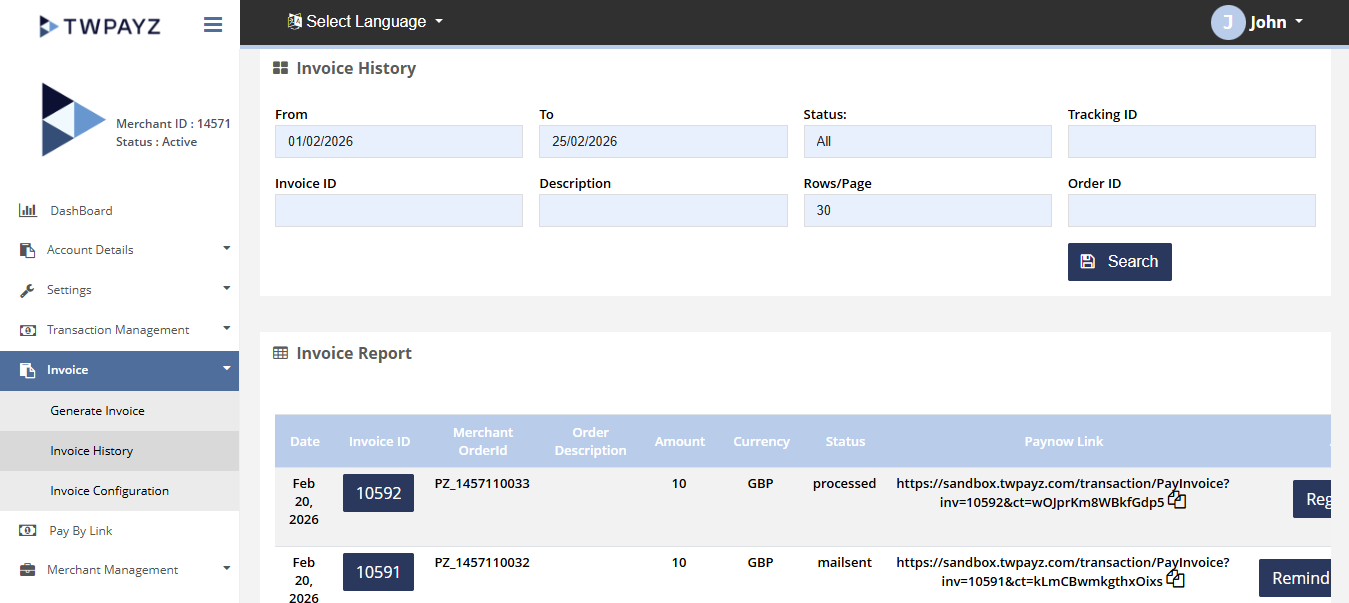
Navigate to: Merchant Backoffice → Merchant Invoice → Invoice History
Search Filters
| Filter | What to enter |
|---|---|
| From date / To date | Date range — defaults to start of current month to today. |
| Status | Filter by invoice status tab: ALL, PAID, UNPAID, PENDING, FAILED, CANCELLED. |
| Tracking ID | The TWPayz transaction reference assigned when the invoice was paid. |
| Invoice Number | Your invoice number (e.g. INV-047). |
| Description | Text search within invoice descriptions — useful if you named invoices by client or project. |
| Rows/Page | Control how many results appear per page. |
| Order ID | Your internal order reference used when creating the invoice. |
Invoice Status Tabs
| Status | Meaning |
|---|---|
| PAID | Customer has paid. Payment reference and date shown. |
| UNPAID | Invoice sent but customer has not yet paid. Link still active if within expiry. |
| PENDING | Payment was attempted and is awaiting network confirmation. |
| FAILED | Payment was attempted but declined. |
| CANCELLED | Invoice was cancelled before payment. |
| EXPIRED | Invoice passed expiry date without payment. Payment link is now inactive. |
Managing an Invoice
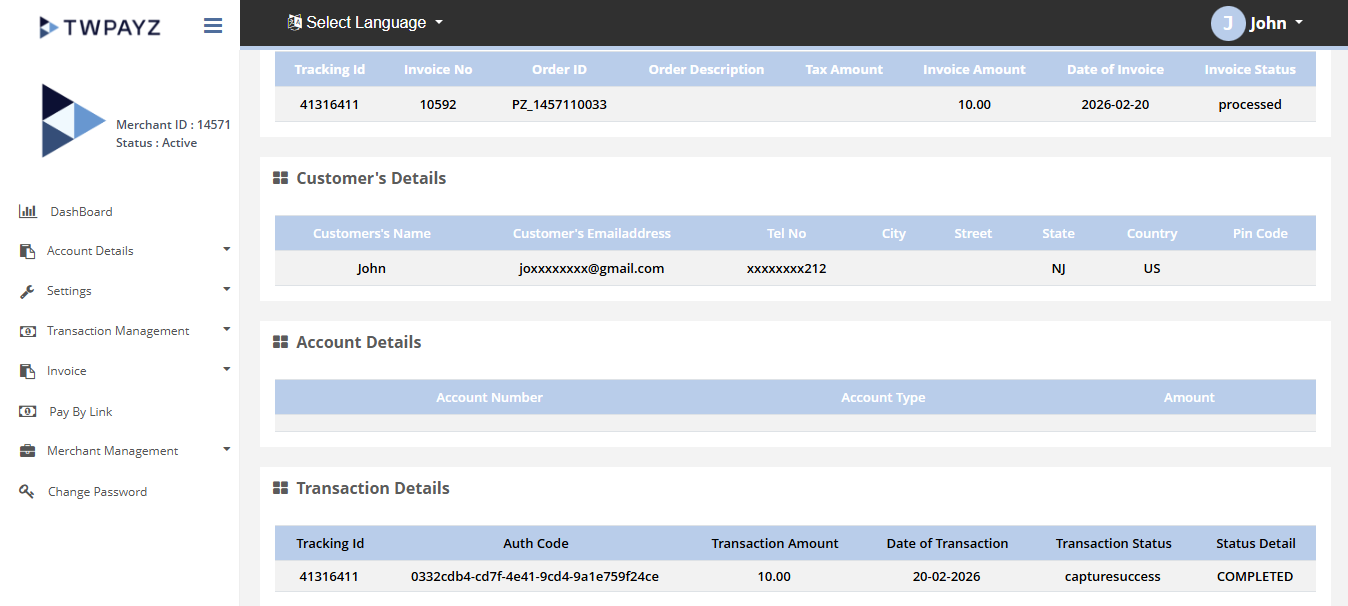
Click any row in the invoice list to open the full invoice detail view. From here you can:
- View the original invoice including all line items, VAT breakdown, and customer details
- Copy the payment link to resend to a customer
- Download the PDF invoice for your records
- Cancel an unpaid invoice (status: Unpaid) — the payment link will be deactivated
Expired invoices cannot be reactivated. If a customer needs to pay an expired invoice, create a new one with the same details.