Process a MOTO Payment — Web Backoffice
Card Not Present › Virtual Terminal › Process a Payment — Web
Step-by-step guide to taking a telephone or mail order payment through the Merchant Backoffice
Navigate to Virtual Terminal in the left-hand menu. Select the terminal you want to process through from the terminal selector.
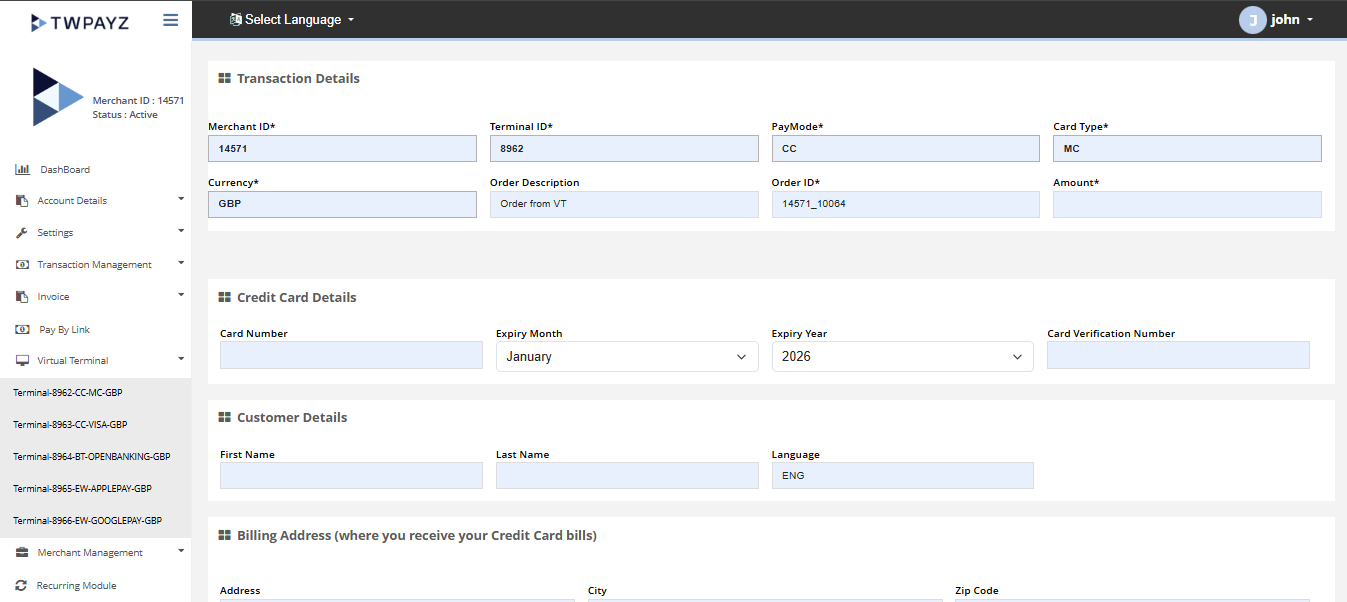
Form Fields
Transaction Details
| Field | What to enter |
|---|---|
| Amount | The transaction value. Verify the currency shown is correct. |
| Order ID | Your internal reference for this transaction (optional but recommended for reconciliation). |
| Order Description | Brief description of what the customer is paying for. |
Card Details — Enter these as provided by the customer
| Field | What to enter |
|---|---|
| Card Number | 16-digit card number (15 digits for Amex). Enter exactly as the customer reads it out. The field auto-formats. |
| Expiry Date | Card expiry in MM/YY format. |
| CVV | 3-digit security code on the back of the card (last 3 digits of the signature strip). For Amex: 4-digit code on the front of the card. |
| Cardholder Name | Full name as it appears on the card. |
Customer Details
| Field | What to enter |
|---|---|
| Customer First Name | Customer's first name. |
| Customer Last Name | Customer's last name. |
| Customer Email | Optional — if entered, customer receives a payment confirmation email. |
Billing Address (Recommended for chargeback protection)
| Field | What to enter |
|---|---|
| Address Line 1 | Street address registered to the card. |
| City | City or town. |
| Postcode / ZIP | Postal code — this is used for AVS (Address Verification Service) matching. |
| Country | Country of the billing address. |
Always collect the billing address for MOTO payments. The AVS check (postcode + address vs card issuer records) significantly reduces chargeback risk. A matched AVS result is strong evidence in your favour if a customer disputes a phone order.
Submitting the Payment
- 1Complete all required fields. Read back the amount to the customer before submitting.Form completed.
- 2Review and accept the terms and conditions checkbox.Checkbox ticked.
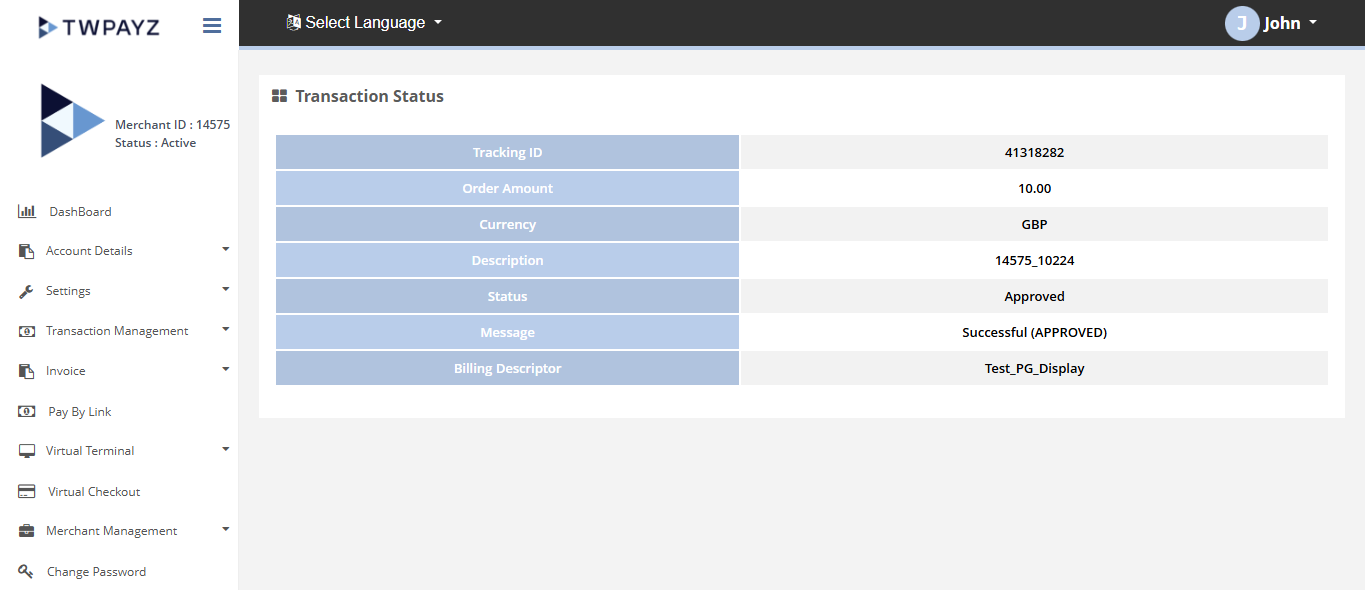
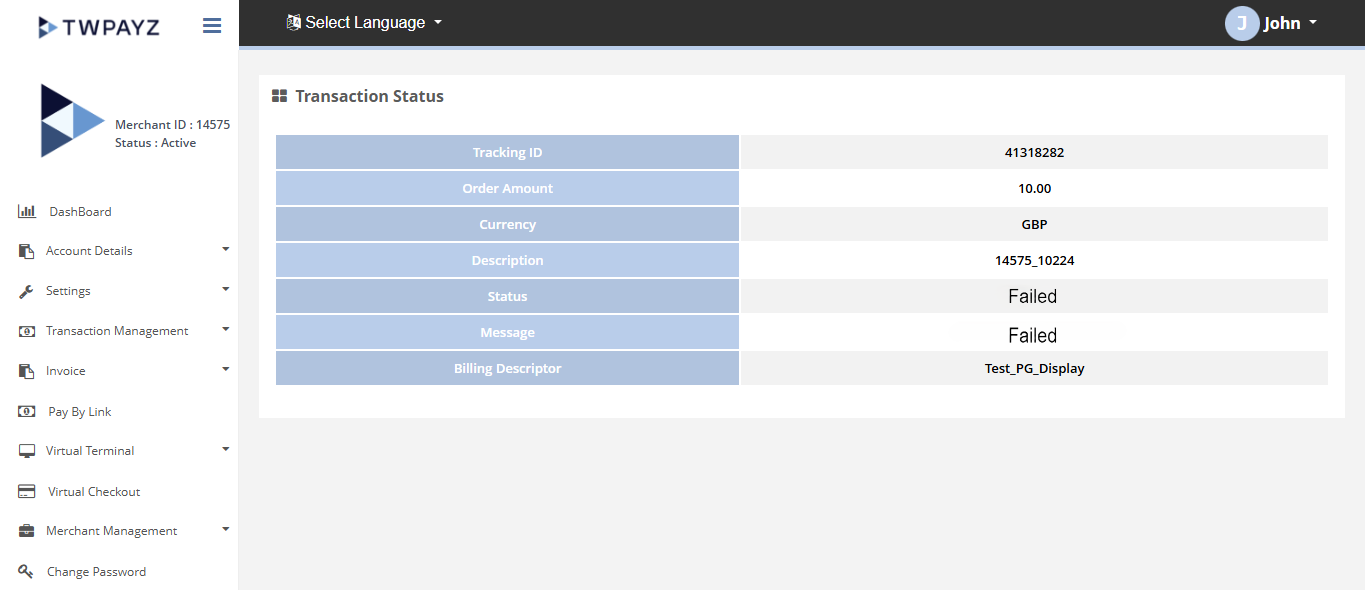
- 3Click Pay Now.Transaction processed (1–5 seconds).
- 4Read the result: approved or declined.Success screen with transaction reference, or decline screen with reason code.