Blacklist & Whitelist
Card Not Present › Merchant Backoffice › Blacklist & Whitelist
Block suspicious cards or customers — and create exceptions for trusted ones
Blacklist
The blacklist lets you block specific cards or customers so that any future transaction from them is automatically declined on your account. Use this for fraud prevention, repeat chargebacks, or disputed transactions.
📸 SCREENSHOTBlacklist Details page — existing entries list with card number/customer reference, reason, and date added. "Add" button highlighted.
📸 SCREENSHOTAdd to Blacklist form — fields: Card number or Customer reference, Reason (dropdown or text), Submit button
- 1Navigate to Blacklist Details in the left-hand menu.Current blacklist entries displayed in a table.
- 2Click Add. Enter the card number (full 16-digit PAN) or customer reference, and a reason for the block.Entry added to the blacklist immediately.
- 3Any future transaction from this card or customer will be automatically declined at the authorisation stage.Customer sees a declined response — no specific reason is given to them.
The blacklist applies to your account only. It does not block the card at other merchants. For suspected fraud involving criminal activity, contact the TWPayz compliance team and consider reporting to Action Fraud.
Whitelist
The whitelist allows specific cards or customers to bypass your blacklist rules. Use this for high-value trusted customers whose card might have been inadvertently blocked, or for testing purposes.
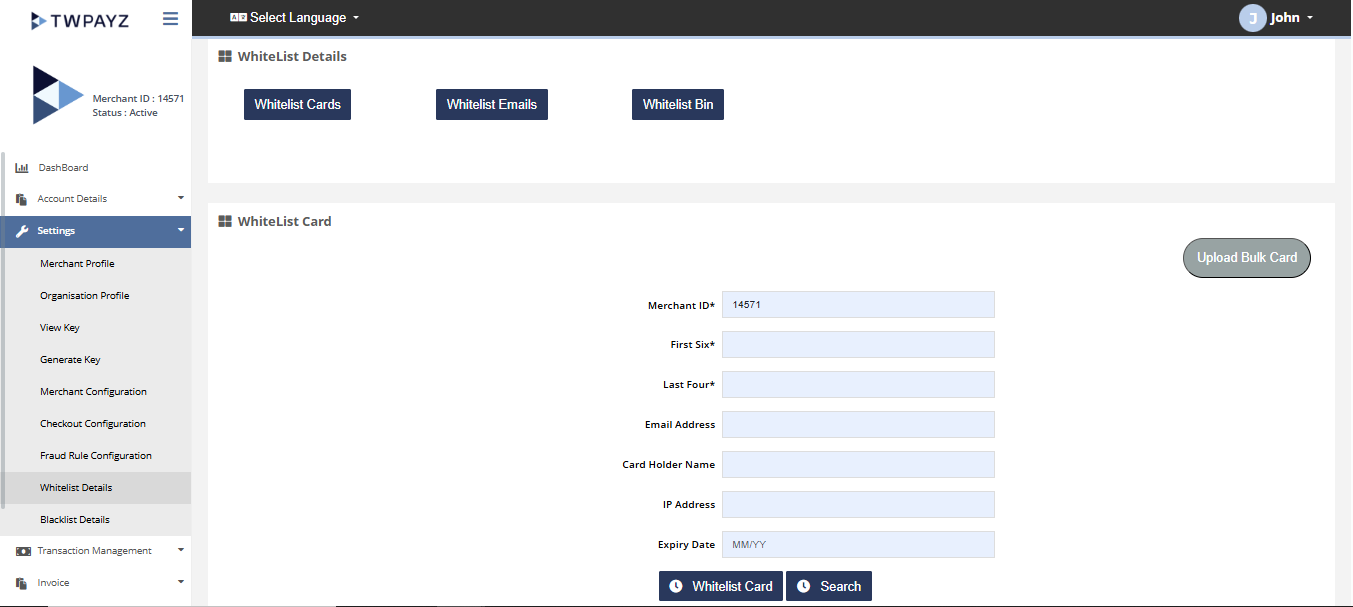
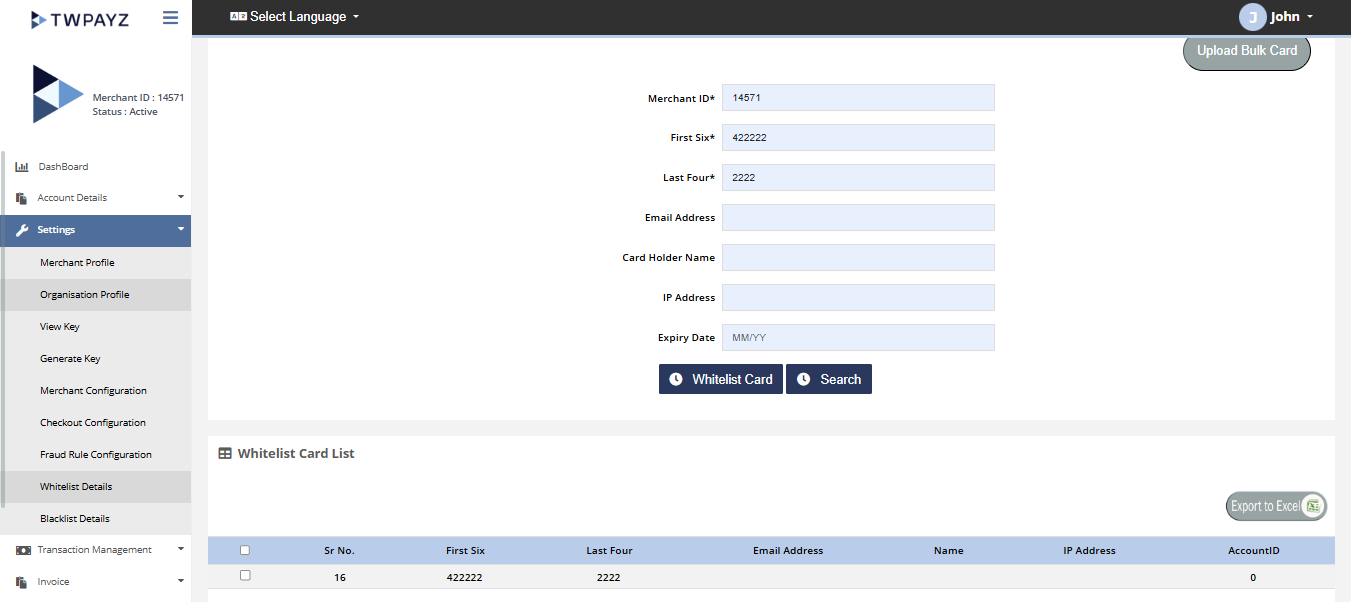
- 1Navigate to Whitelist Details in the left-hand menu.Current whitelist entries displayed.
- 2Click Add. Enter the card number or customer reference.Entry added. This customer's transactions will pass through even if they would otherwise match a blacklist entry.
Review your blacklist and whitelist periodically to remove stale entries. Old blacklist entries that are no longer relevant can block legitimate returning customers.