Create a Payment Link — Web Backoffice
Card Not Present › Pay by Link › Create — Web Backoffice
Step-by-step: generating a payment link from the Merchant Backoffice
Navigate to Pay By Link in the left-hand menu of the Merchant Backoffice.
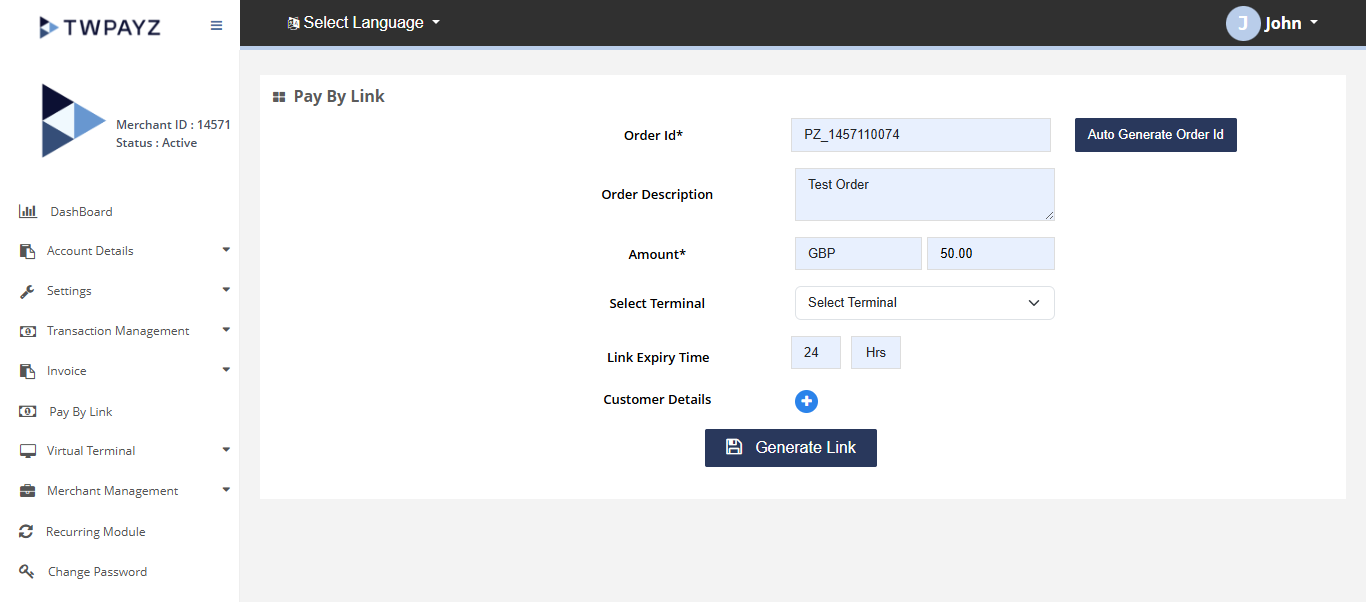
Form Fields
| Field | Required | What to enter |
|---|---|---|
| Order ID | Yes | Your unique internal reference for this payment (e.g. invoice number, order number, job reference). This appears in your transaction history and helps you match the payment to your records. Must be unique per transaction. |
| Order Description | Yes | A short description shown to the customer on the payment page (e.g. "Invoice INV-123 — Consulting Services July 2026"). Keep it clear so the customer knows what they are paying for. |
| Amount | Yes | The payment amount. Confirm the currency shown is correct — if you process in multiple currencies, select the correct one before entering the amount. |
| Select Terminal | Yes | Choose which processing terminal to route this payment through. Each terminal has its own rate configuration and MID. If you are unsure, select your default terminal — your Account Manager can confirm which to use. |
| Link Expiry Time | Yes | How long the link remains valid: 24 hours, 48 hours, 3 days, or 7 days. After expiry the link becomes inactive and the transaction closes as Expired. Choose based on urgency — for immediate requests use 24h; for weekly invoices use 7 days. |
| Customer Name | Optional | Pre-fills the name field on the customer-facing payment page. If entered, the customer sees their name already filled in. |
| Customer Email | Optional | If provided, an email confirmation is sent to this address when the customer completes payment. Recommended for business invoices and B2B payments. |
| Customer Phone | Optional | Stored against the transaction in your records. Not used for any automated communication. |
Generating and Sharing the Link
- 1Complete all required fields. Double-check the amount and Order ID before proceeding.Form ready to submit.
- 2Click Generate Link.A unique payment URL and QR code are displayed on screen.
- 3Click Copy Link to copy the URL to your clipboard.URL copied. Ready to paste.
- 4Paste the link into an email, WhatsApp message, SMS, or any communication channel. Send it to the customer.Customer receives link and can pay immediately.
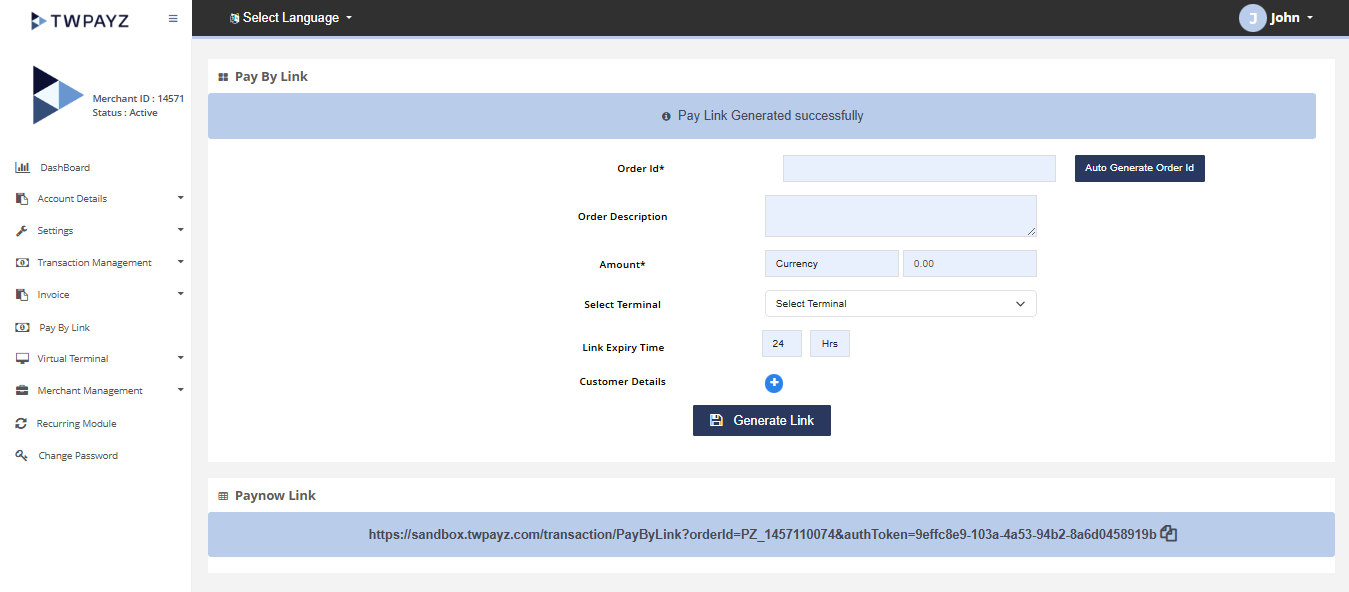
The QR code is always generated alongside the link. Download or screenshot it to display at your counter, include in a PDF invoice, or print on a receipt — customers scan it with their phone camera to pay instantly without needing a link.