Transactions
Transactions are initiated in the Handpoint mPOS app on your smartphone, tablet or computer.
Contents
1. Contactless payments
The HiLite card reader supports contactless payments, which involves the following:
- The transaction is initiated in the Handpoint mPOS app on the smartphone, computer or tablet.
- When the message “PRESENT CARD” appears, tap the card on the HiLite’s contactless symbol.
- Enter the PIN using the keypad and press
 [OK button] (use
 [Back button] to erase and then use the keypad to re-enter the PIN if you made a mistake or cancel by pressing
 [Cancel button]).
The merchant is responsible for providing the customer with a receipt from the Handpoint mPOS app via email or SMS.
2. Chip and PIN
The HiLite card reader supports Chip and PIN cards. For Chip and PIN transactions use the EMV chip reader (see section 1.1. point 12).
This is an example of what happens in a Chip and PIN transaction:
- Transaction is initiated in the Handpoint mPOS app on the smartphone, computer or tablet.
- When the message “PRESENT CARD” appears, insert the card in the EMV chip reader (see section 1.1. point 12) with the chip facing up and towards the HiLite card reader.
- Enter the PIN using the keypad and press [OK button] (use [Back button] to erase
and then use the keypad to re-enter the PIN if you made a mistake or cancel by pressing [Cancel button]).
- When the message “REMOVE CARD” appears, remove the card from the EMV chip reader.
The merchant is responsible for providing the customer with the receipt from the Handpoint mPOS app.
3. Fallback to magnetic stripe
If the HiLite card reader cannot read the chip, it will fallback to magnetic stripe. The HiLite card reader will prompt you to remove the card from the EMV chip reader (see section 1.1 point 12) and swipe the card using the magnetic stripe reader (see section 1.2 point 11). The HiLite card reader might ask you to remove and insert the card into the EMV chip reader a couple of times before falling back to magnetic stripe.
This is an example of what happens if a transaction falls back to magnetic stripe:
- Transaction is initiated in the Handpoint mPOS app on the smartphone, computer or tablet.
- When the message “PRESENT CARD” appears, insert the card in the EMV chip reader (see section 1.1 point 12) with the chip facing up and towards the HiLite card reader.
- If the HiLite card reader cannot read the chip, the message “REMOVE CARD” will appear. You should remove the card.
- When the message “PRESENT CARD” appears, insert the card in the EMV chip reader.
- When the message “SWIPE CARD” appears, swipe the card using the magnetic stripe reader with the magnetic stripe facing to the front.
- Confirm the amount by pressing [OK button] or cancel by pressing [Cancel button].
The merchant is responsible for providing the customer with a receipt from the Handpoint mPOS app. The receipt could be send digitally only, via email or sms.
4. Refunds and reversals
When you receive your HiLite card reader, you’ll notice that the refund option is disabled by default. To enable refunds on your terminal, please contact your service provider.
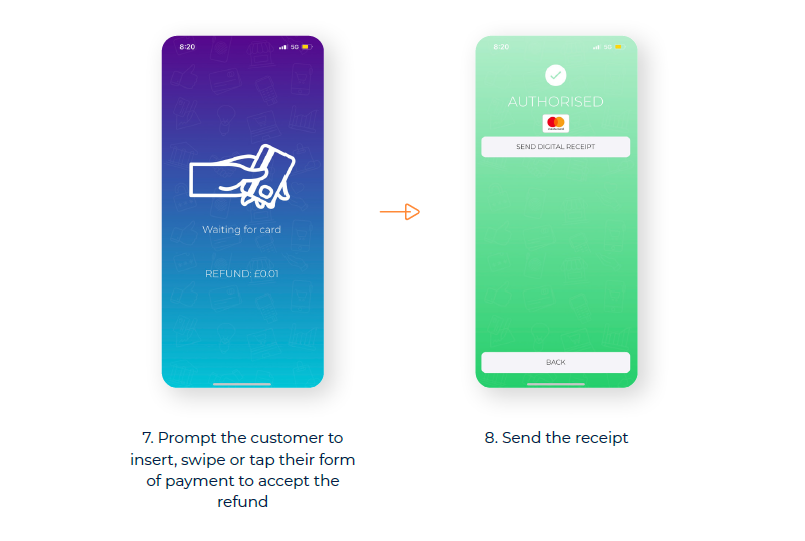
Please follow the steps below to perform a refund on the HiLite card reader via the Handpoint mPOS app:
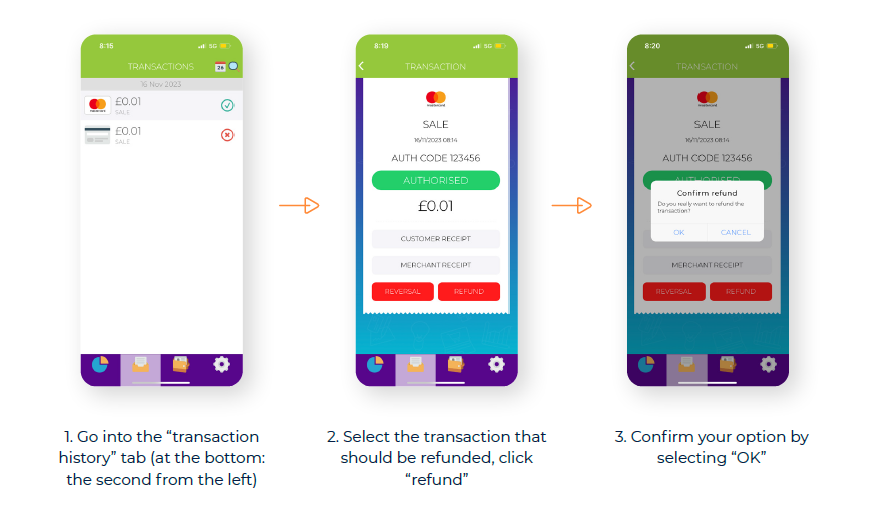
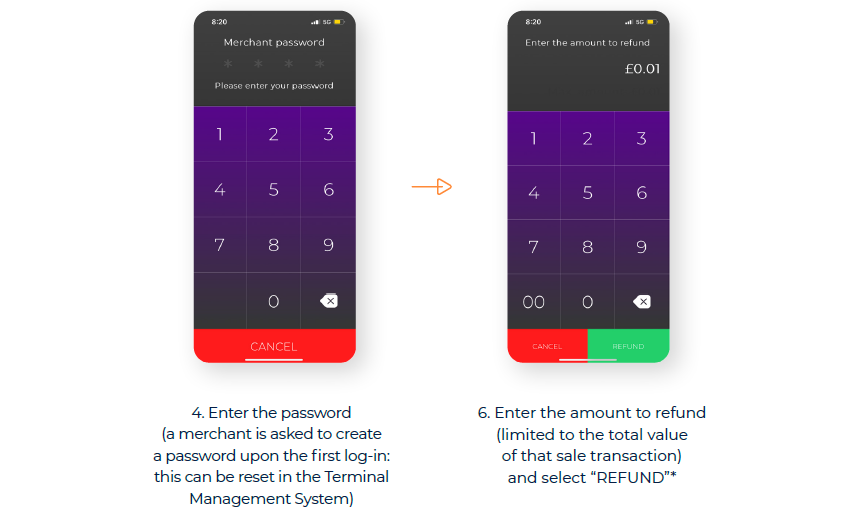
*The refund amount can be smaller or equal to the original transaction amount. Only one refund per original transaction is allowed.
5. Tipping options
Your HiLite device does support tipping. To enable that, please contact your service provider. Once enabled, customers can choose between a percentage and/or a custom amount for the tip. These options can work separately or together.
| Menu item |
|---|
| No tip |
| 5% |
| 10% |
| 15% |
| 20% |
| Enter amount |
This is what happens in a transaction with gratuity or tips enabled:
- Transaction is initiated in the Handpoint mPOS app on the smartphone, computer or tablet.
- The HiLite card reader will show the message “PRESENT CARD / Press OK or C / ADD
GRATUITY”. Press [OK button] to add a tip to the transaction amount (use [Cancel button] to cancel the tip).
- When the gratuity or tips menu appears, scroll down the menu using
 [Up arrow] and
[Down arrow] to select how much you want to tip.
- Press [OK button] to select tip amount, if you select “ENTER AMOUNT”:
- Enter tip amount using the keypad (use [back button] to erase and then the keypad to
re-enter the amount if you made a mistake).
- Press [OK button].
- Enter tip amount using the keypad (use
- Tap or insert your card to process the payment. For chip or PIN transactions, enter the PIN
using the keypad and press [OK button] (use [back button] to erase and then the
keypad to re-enter the PIN if you made a mistake).
The merchant is responsible for providing the customer with a receipt from the Handpoint mPOS app via email or SMS.