Device Settings — Castle S4
Card Present › Castle S4 › Device Settings
Gratuity, split billing, refund limits, network, and software updates
Network Settings
Change Wi-Fi Network
- 1Open the Cradle app from the Android home screen.Cradle configuration app opens.
- 2Tap Wi-Fi Setting. Select the new network and enter the password.Terminal connects to new network. "Connected" confirmation appears.
Switch to Ethernet
Connect an Ethernet cable to the port at the base of the terminal. Ethernet takes priority over Wi-Fi when connected — no additional configuration needed. Ethernet is recommended for high-volume fixed-counter use as it is more reliable than Wi-Fi.
DHCP vs Static IP
The terminal uses DHCP (automatic IP address assignment) by default. If your network requires a static IP (common in enterprise environments), contact TWPayz support to configure this — it requires a configuration update pushed to the terminal remotely.
Gratuity & Service Charges Permission required
When enabled, the terminal displays a tip/gratuity prompt to the customer after the transaction amount is confirmed, before PIN entry. This is commonly used in hospitality, restaurants, and salons.
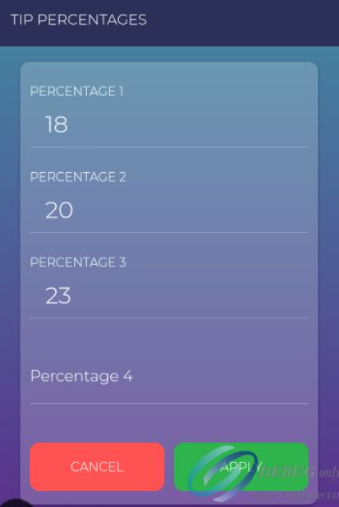
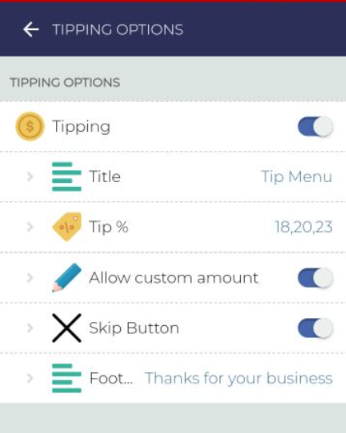
- Up to 3 preset percentage options can be configured (e.g. 10%, 15%, 20%)
- A "Custom amount" option allows the customer to enter their own amount
- A "No tip" option is always available — customers are never forced to add gratuity
- The gratuity amount is shown as a separate line on the printed receipt
- Gratuity is included in the settlement amount and appears as a separate line in transaction reports
To enable or modify gratuity settings, contact your Account Manager. Changes are pushed remotely to the terminal — no manual configuration on the device is required.
Split Billing Permission required
Allow a single transaction total to be split and paid across multiple cards. Commonly used in restaurants, group bookings, or anywhere multiple people are contributing to one bill.
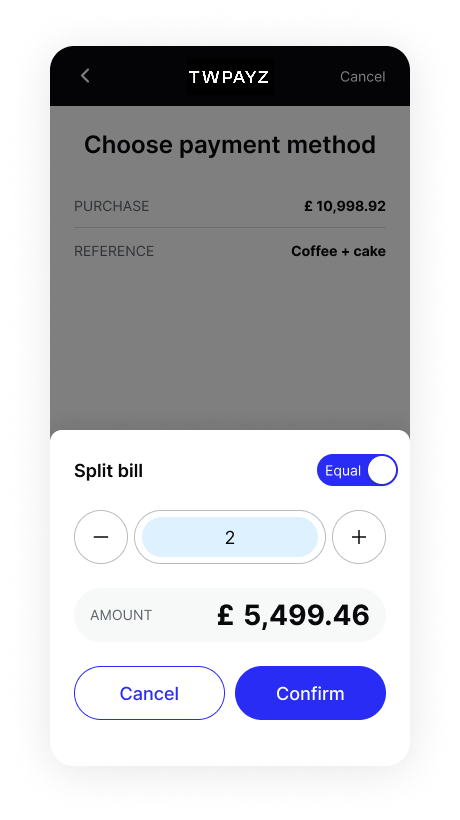
- 1Begin a standard Purchase transaction and enter the full total amount.Amount entry screen visible.
- 2Tap Split Bill (if enabled, appears before card presentation).Split options shown: equal split (enter number of ways) or custom amounts.
- 3Select equal split or enter custom amounts for each card. The screen shows the amount each card will be charged.Per-card amounts confirmed.
- 4Each card is processed in turn. After each card payment, the terminal prompts for the next.All splits processed. Each is a separate authorisation in your transaction history, linked by the same order reference.
Refund Limits & Restrictions Permission required
Configure restrictions on who can issue refunds and for how much. Useful for controlling staff access or preventing accidental large refunds.
| Setting | What it does |
|---|---|
| Maximum refund value | Cap the highest single refund amount allowed (e.g. max £500 per refund) |
| Refund window | Block refunds on transactions older than a specified number of days (e.g. no refunds after 30 days) |
| Manager PIN for large refunds | Require a supervisor PIN to authorise refunds above a threshold |
Software Updates
TWPayz pushes software updates to the terminal automatically over Wi-Fi. Updates are typically applied overnight when the terminal is in standby.
Check for updates manually
- 1In the TWPayz POS app, tap the menu icon (top-left). Select App Details.App Details screen shows current version number.
- 2Tap Check for Updates (if visible)."Up to date" message or update download begins.