HiLite card reader user guide
This guide will help you get to know your HiLite card reader and make your first transaction. To be able to process transactions, you must pair your HiLite card reader with a smart device (phone, tablet or laptop) via Bluetooth and the Handpoint mobile Point of Sale (mPOS) app. This will be explained further on.
Contents
1. Getting to know your HiLite card reader
3. Getting started with the Handpoint mPOS app
3.1. Setting up your HiLite device: Your first transaction
3.2.How it works
1. Getting to know your HiLite card reader
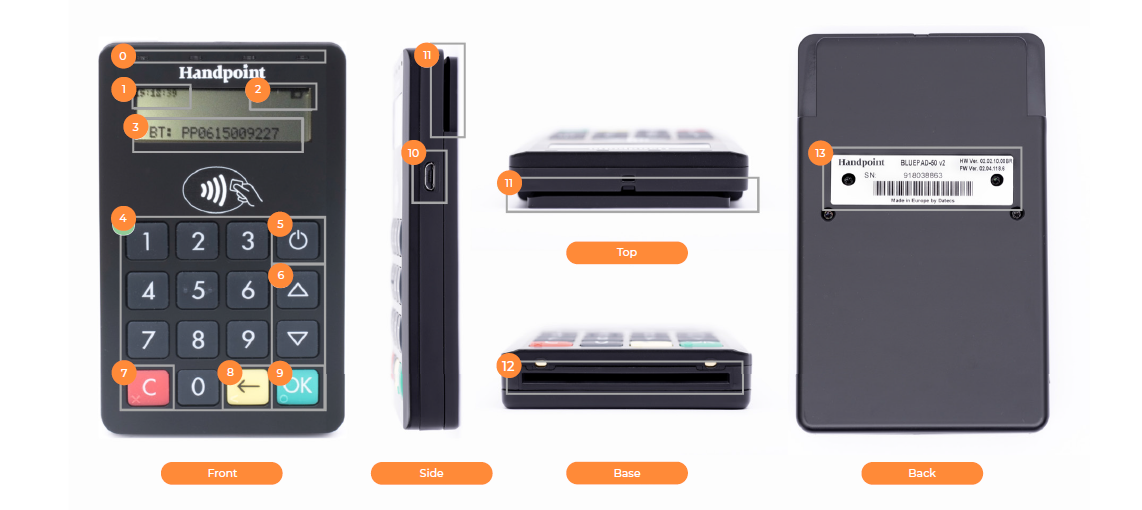
| Sr No. | Name | Description |
|---|---|---|
| 0 | Near-field Communication (NFC) status lights | The lights indicate the status of a contactless transaction |
| 1 | Clock | Shows the time - hours: minutes: seconds |
| 2 | Icons | The icons show the battery life and other information |
| 3 | Bluetooth name | Look for this name in your Bluetooth device list on your smartphone, tablet or computer. The last nine (9) digits of this number are also your Serial Number. |
| 4 | Keypad | To input PIN or other information |
| 5 | Power | To turn on and off, hold down the power  for a couple of seconds |
| 6 | Up/down arrows | To move up and down menus, press  |
| 7 | Cancel | To cancel transactions, where applicable, or perform other actions |
| 8 | Back | To erase keyed numbers |
| 9 | OK | To select or confirm actions |
| 10 | Charging cable | Plug in the charging cable (USB mini-B connector) to a plug to charge the battery |
| 11 | Magnetic stripe reader | Swipe card with the magnetic stripe facing forward |
| 12 | Europay, Mastercard and Visa (EMV) chip reader | Present card with chip into the slot |
| 13 | Hardware label | Shows the Hardware Version (HW ver), Serial Number (SN) and barcode, which will be required for identifying your card reader for updates or support questions |
2. Getting Started
The first time you connect, you have to connect and register the HiLite card reader on the Handpoint mPOS app. Please follow the instructions in your Handpoint mPOS app to connect and register.
3. Getting started with the Handpoint mPOS app
- Download the Handpoint mPOS app
Download the Handpoint mPOS app on your smart device via Google Play for Android devices or the App Store for Apple devices.
- Account setup
In order to use the Handpoint mPOS app to accept payments, you need to have a merchant account with E-Comprocessing.
- First time login
When you open the Handpoint mPOS app for the first time, you must sign up with the same email address you provided for your merchant account and set a unique, strong password. If you wish to use an alternative email address, please contact your service provider.
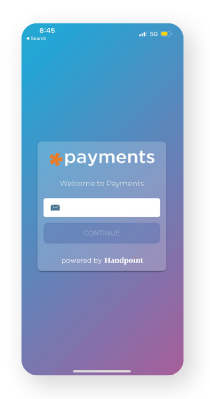
The mPOS app will prompt you to pair your card reader. Ensure your device (smartphone, computer or tablet) has the Bluetooth functionality turned on and that your card reader is switched on. Select the correct card reader from the options provided (identifiable by the Serial Number, which is on the back of your card reader).- If your card reader’s Serial Number does not appear when prompted, you can go into ‘Settings’, select ‘Device’, where you will find your card reader’s Serial Number as an option.
- Wait until you see the Bluetooth icon
 on the HiLite card reader screen. If that icon
appears, it means that the HiLite card reader is connected. (Note that this may take a few
seconds).
- Card reader initialisation
- Initiate a transaction in the mPOS app on the device.
- When the message “UPDATING READER” appears, the HiLite card reader will start downloading and installing the update.
- Once done, the message “UPDATE COMPLETE” will appear.
- Your card reader will automatically restart.
- Live transactions
Once your card reader has restarted, you can start accepting payments with your mPOS solution!
3.1. Setting up your HiLite device: Your first transaction
The first transaction:
- Make sure that the smartphone, computer or tablet device you’re using for the HiLite card reader has Bluetooth turned on.
- Turn on the HiLite card reader by pressing and holding for a couple of seconds.
- The Handpoint mPOS app will prompt you to pair your card reader via Bluetooth. You must enable Bluetooth on your device and have your card reader switched on. If the card reader is not automatically paired, you can select it from the options provided. It can be identified by its Serial Number, located on the back of your card reader.
- If your card reader doesn’t appear, please follow the below steps:
- Enable Bluetooth on your device.
- Turn on Location Services.
- Open Bluetooth in your settings.
- Search and connect to the card reader.
- SClick “OK” if a passkey is required after connecting.
- Wait until you see the Bluetooth icon on the HiLite card reader screen (see section 1.1. point 2). When that icon appears, the HiLite card reader is connected. This may take a few minutes.
- Initiate a transaction via the Handpoint mPOS app, using your chosen smartphone, computer or tablet device.
- During the first transaction, your HiLite card reader needs to update. When the message “UPDATING READER” appears, the HiLite card reader will start downloading and installing the update. Once done, the message “UPDATE COMPLETE” will appear.
- When the message “PRESENT CARD” is displayed, you can either tap the card on the contactless symbol or insert the card in the EMV chip reader (see section 1.1. point 12) with the chip facing up and towards the HiLite card reader.
-
Enter the PIN using the keypad and press
 [OK button] (use
 [Back button] to erase and
then the keypad to re-enter the PIN if you made a mistake), or cancel by pressing
 [Cancel button]
- When the message “REMOVE CARD” appears, remove the card from the EMV chip reader.
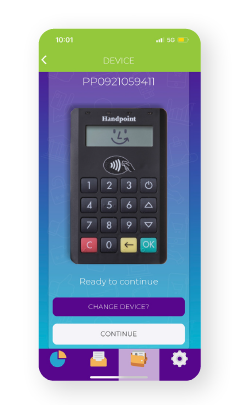
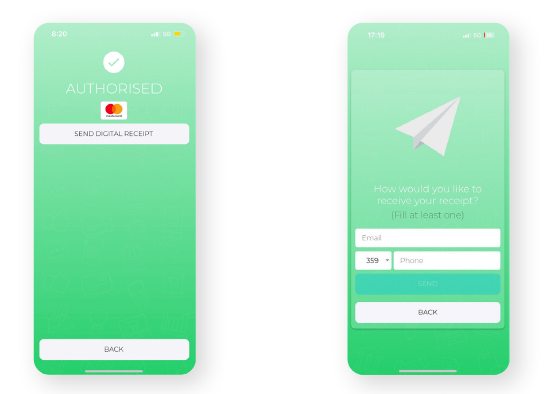
The Handpoint mPOS app is responsible for providing the customer with a receipt created by the HiLite card reader. In a standalone mode with the HiLite you can only send a digital receipt via e-mail or SMS to the customer.
3.2. How it works
This section shall demonstrate how the Handpoint mPOS app works, whether you are using a linked mobile Point of Sale (mPOS) application or POS software application.
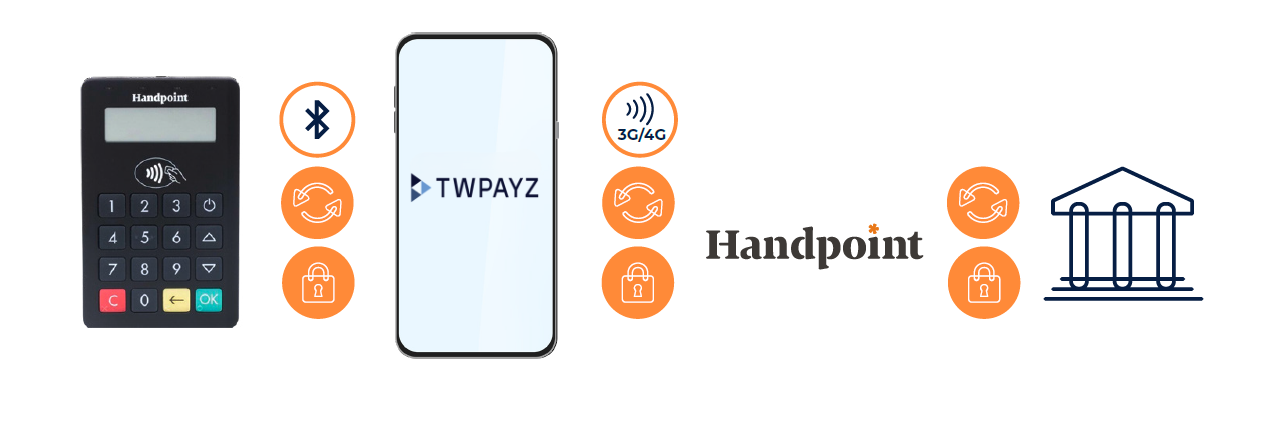
- Handpoint mPOS app downloaded on your device initiates a transaction on the HiLite card reader using Bluetooth.
- The customer inserts or taps their card and follows the directions on the HiLite card reader screen.
- The HiLite card reader sends the transaction information encrypted via Bluetooth to the mPOS Payment app.
- The Handpoint mPOS app forwards the encrypted transaction information to the Handpoint gateway via an internet connection, which processes the transaction using your acquirer.
- The Handpoint gateway receives a response from the acquirer and forwards the encrypted response to its internet connection.
- The Handpoint mPOS app forwards the encrypted response to the HiLite card reader via Bluetooth.
- The HiLite card reader reads the response, finalises the transaction and sends a receipt to the POS app.
- The customer removes their card and the merchant provides the customer with a receipt through the Handpoint mPOS app.