First-Time Setup
Card Present › PAX A920 Pro › First-Time Setup
Battery installation, charging, and powering on for the first time
Do this before charging: The battery ships with a protective plastic strip over the connectors. You must remove this strip before the terminal will function. If you skip this step, the device will not power on even when plugged in.
Step 1 — Remove the Battery Protective Strip
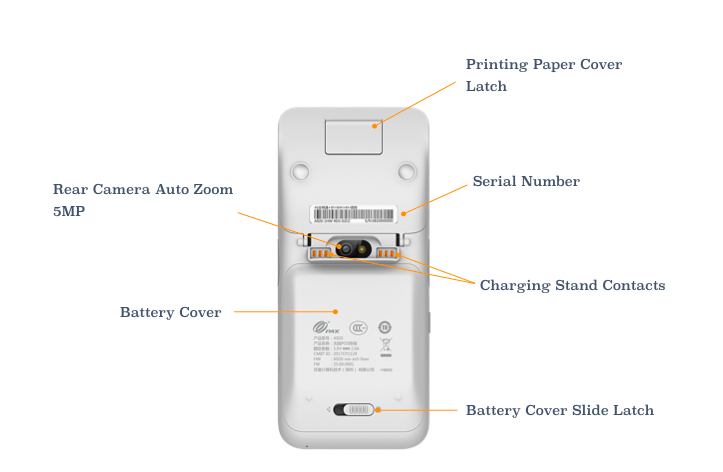
- 1Hold the terminal face-down. Find the slide latch on the battery cover — it runs along the bottom edge of the back panel.The latch is a small plastic tab with an arrow indicating the direction to slide.
- 2Slide the latch in the direction of the arrow (usually right), then lift the battery cover away from the device.Battery compartment is now fully open.
- 3Lift out the battery by pulling the small tab at the bottom of the battery.Battery slides out, revealing the connector pins underneath.
- 4Pull out and discard the protective plastic strip that covers the battery connector pins. It is a small piece of clear or orange plastic inserted between the battery and the connectors.Connector area is now clear with no plastic in the way.
- 5Re-insert the battery with the connector end going in first. Press firmly until it clicks into place.Battery sits flush in the compartment with no gap.
- 6Replace the battery cover. Slide latch back to the locked position.Back cover is flush and latch is secured.
Step 2 — Charge the Terminal
- 1Connect the supplied micro-USB cable to the charging port on the left side of the terminal.Amber LED begins flashing — charging in progress.
- 2Charge fully before first use. A full charge takes approximately 3 hours from empty.LED turns solid green when fully charged.
We recommend charging to 100% before first use so you have maximum battery life for setup and your first transactions.
Step 3 — Power On
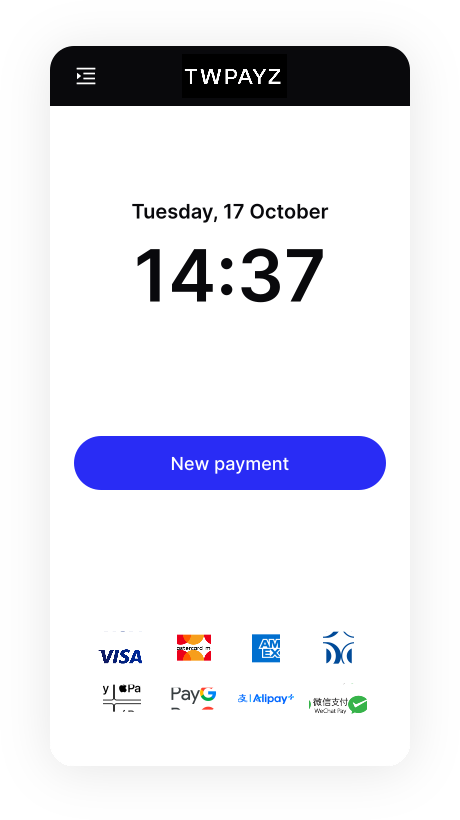
- 1Press and hold the power button (right side of terminal) for 2–4 seconds.Screen lights up and the TWPayz boot screen appears.
- 2Wait for the device to fully boot. Do not press any buttons during this process.Home screen appears within 30–60 seconds.