Taking payments
Card Present › PAX A920 Pro › Taking payments
Step-by-step: contactless, chip & PIN, and how to handle every outcome
Before You Start
- Ensure the terminal is connected (Wi-Fi icon or 4G bars visible in the status bar)
- Open the TWPayz Payments app from the home screen
- The app should display the payment home screen with an amount entry keypad
Taking a Contactless or Chip & PIN Payment
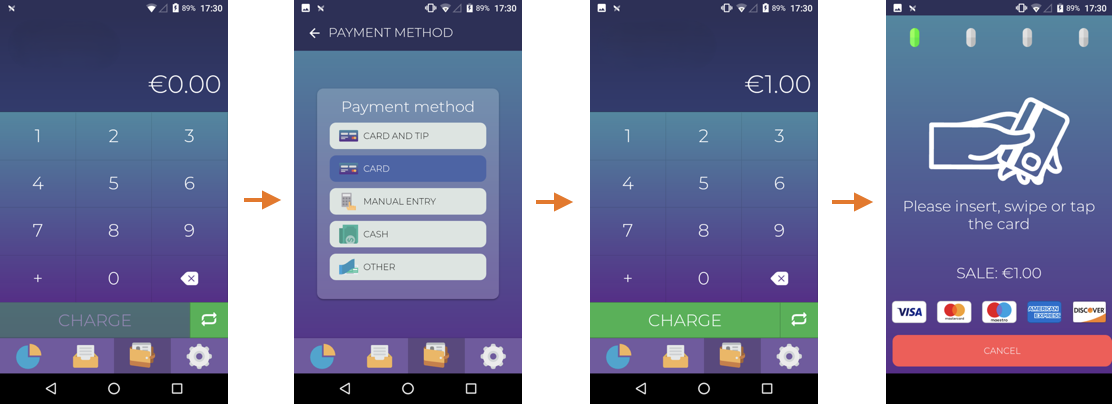
- 1Enter the transaction amount using the on-screen keypad. Double-check the amount before proceeding.Amount is displayed prominently on screen (e.g. £12.50).
- 2Tap the green Confirm or Charge button.Screen changes to card presentation screen: "Present your card".
- 3For contactless: ask the customer to tap their card or phone on the NFC zone (the contactless wave symbol in the centre of the terminal).
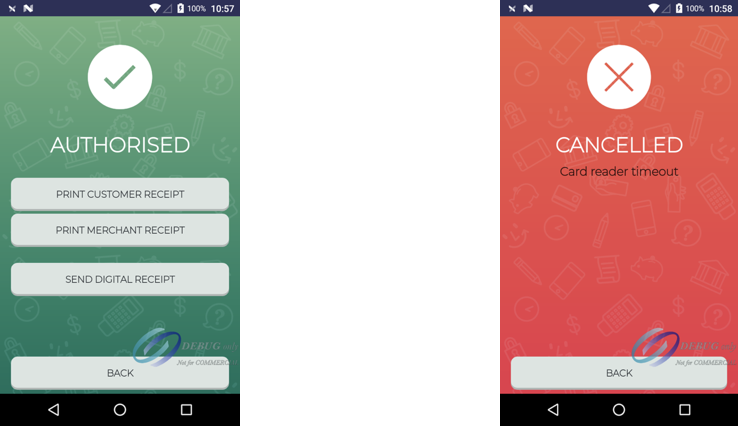
For chip & PIN: ask the customer to insert their card into the slot at the bottom of the terminal. The customer then enters their PIN on the terminal keypad.Terminal communicates with the card network (1–3 seconds). - 4Wait for the authorisation result. Do not remove the card until prompted.Approved: green tick with "Payment Approved" / Declined: red X with "Payment Declined".
- 5On approval, select receipt option: Print, Email (if configured), or No receipt.Receipt prints automatically or customer receives email. Transaction is logged in your backoffice.
If the Payment is Declined
| What the customer sees | What to do |
|---|---|
| Payment declined | Ask the customer to try a different card or contact their bank. Do not retry the same card immediately. |
| Contactless limit exceeded | Ask the customer to insert their card and enter their PIN instead. |
| Incorrect PIN | Ask the customer to re-enter their PIN. After 3 incorrect attempts the card may be blocked. |
| Card expired | Ask the customer to use a valid card. |
| Try another card | The contactless read failed — ask the customer to insert the chip. |
Never retry a declined payment multiple times in quick succession. Multiple declined attempts can trigger fraud flags on the customer's card. If a payment is declined, wait and ask the customer to use a different card or contact their bank.
Viewing Recent Transactions
All transactions processed through the terminal are visible in the TWPayz Merchant Backoffice under Transaction Management, and in the TWPayz Merchant App under Sales. Filter by Card Present to see terminal transactions only.