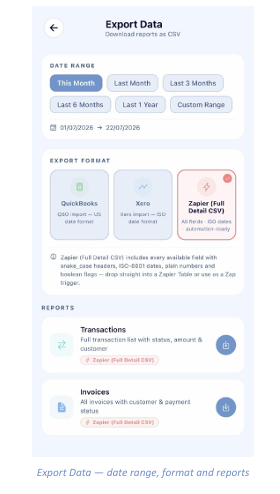
Exporting Data
CSV reports for your accountant or automations
The Export Data screen lets you download your records as CSV files, formatted for whichever system you use.
Choosing a date range
Pick one of the presets — This Month, Last Month, Last 3 Months, Last 6 Months or Last 1 Year — or tap Custom Range to set your own dates. The selected range is confirmed underneath the buttons.
Choosing an export format
- QuickBooks — QBO import file using US date format.
- Collected — Xero import file using ISO date format.
- Xero — awaiting confirmation.
- Zapier (Full Detail CSV) — every available field, with snake_case headers, ISO-8601 dates, plain numbers and boolean flags. Designed to drop straight into a Zapier Table or act as a Zap trigger.
Downloading a report
Under Reports, each report shows the format it will be exported in. Tap the download button on the right of the row to generate the file:
- Transactions — full transaction list with status, amount and customer.
- Invoices — all invoices with customer and payment status.