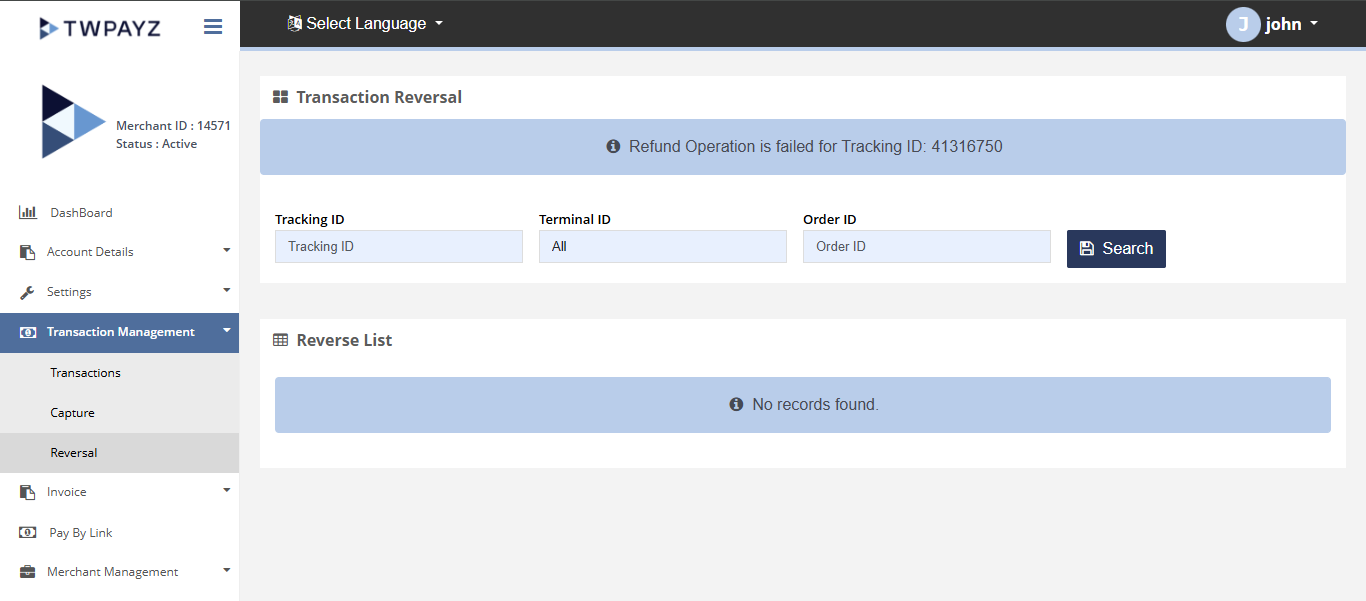
Transaction Management
This section provides access to all transaction-related operations, organized under the following tabs:
Transaction Management > Transactions
The Transaction List page allows you to view and manage all transactions processed through your merchant account. You can search and review transaction records based on various criteria.
How to access pages?
After logging in to the Merchant Backoffice, click Transactions in the left-hand navigation menu to access the Transaction List page.
Search criteria
You can search for transactions using the following details:
- From date (First date of the current month) with time
- To date (Today's date) with time
- Tracking ID
- Terminal ID
- POS Terminal
- Order Id
- Customer Id
- First Name
- Last Name
- Data Source
- Email ID
- Rows/Page
- Status
- Date Type
- Time Zone
- Issuing Bank
- Status Flag
- Card Present
Result details
Merchants can select the required search field from the following list to filter and locate specific transactions:
- Transaction Date
- Tracking ID
- Order Id
- Order Description
- Card Holder's Name
- Customer Email
- Customer ID
- Payment Mode
- Payment Brand
- Amount
- Refund Amount
- Currency
- Status
- Remark
- Terminal ID
- Last Update Date
- Issuing Bank
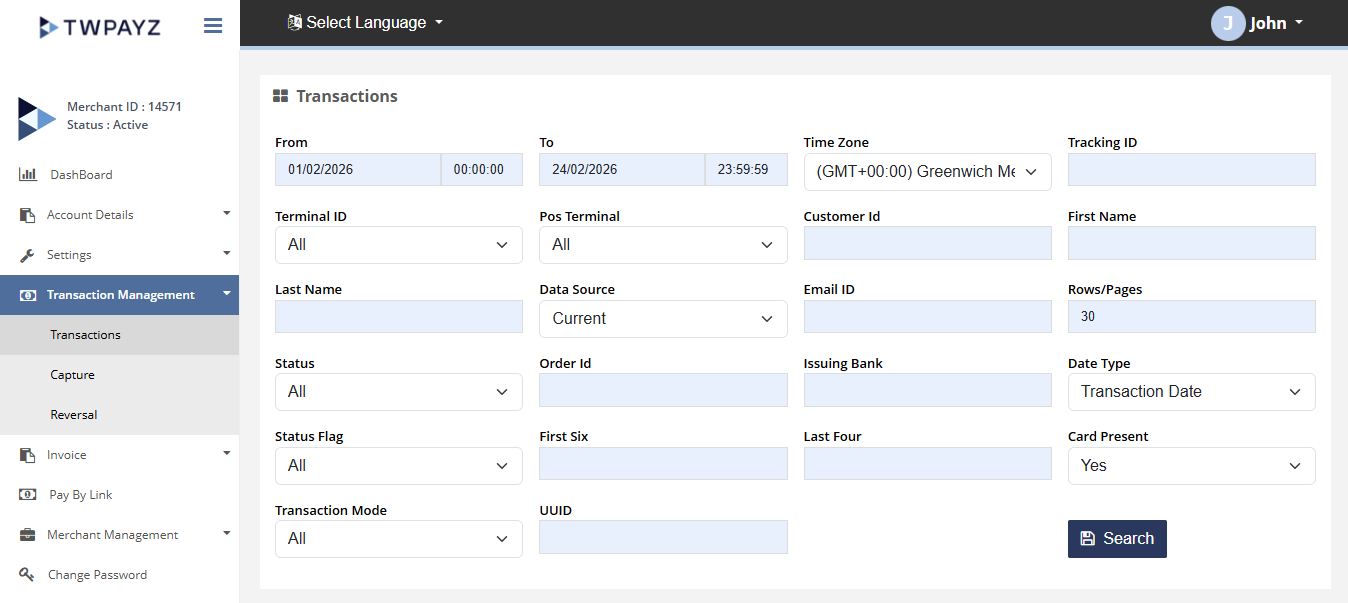
Transactions search filter
Card Present
Use the Card Present (Y) filter to view all card-present (POS) transactions.
Transactions > Transaction Details
The Transaction Details page provides comprehensive information about a specific transaction, including its status, processing details, and related transaction data.
How to access pages?
After logging in to the Merchant Backoffice, click Transactions from the left-hand navigation menu and search for the desired transaction.
Result details
Once the transaction search results are displayed, click the corresponding Tracking ID to view the complete details of that transaction.
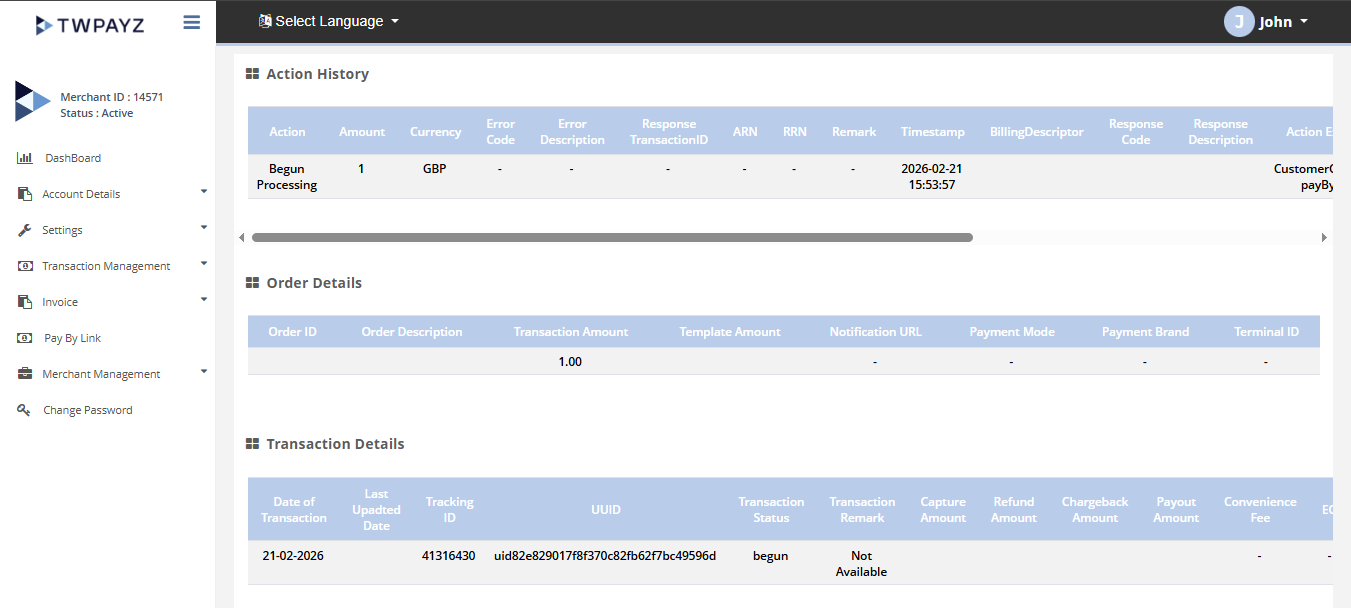
Transaction Details
Full Capture
The Capture page allows you to perform a full capture operation on previously authorized transactions. Once a transaction has been authorized, you can capture the funds from this section.
How to access pages?
After logging in to the Merchant Backoffice, click Capture from the left-hand navigation menu to access the page.
Search criteria
You can search for authorized transactions using the following parameters:
- Tracking ID
- Terminal ID
How to capture a transaction?
This section displays all transactions that are eligible for capture. To capture transactions, select one or more records by checking the corresponding checkboxes on the left side of the list.
Before proceeding with the capture operation, you must provide the following information:
- Proof of Delivery (POD)
- Shipment Tracking URL/Site
Once the required details have been entered, click CAPTURE AND/OR SUBMIT SHIPPING DETAILS to complete the capture process. Multiple transactions can be captured simultaneously.
_new.png)
Transactions to be captured
_new.png)
Capture
Partial Capture
The Partial Capture page allows merchants to capture a portion of the authorized transaction amount instead of capturing the full amount.
How to access pages?
After logging in to the Merchant Backoffice, click Capture from the left-hand navigation menu to access the capture functionality.
Search criteria
You can search for transactions eligible for partial capture using the following parameters:
- Tracking ID
- Terminal ID
How to capture a transaction partially?
Once a transaction has been authorized, you can capture a partial amount by following these steps:
- Locate the desired transaction in the search results.
- Click the Partial Capture button displayed on the right side of the transaction record.
- Enter the amount you wish to capture.
- Submit the request to complete the partial capture operation.
The specified amount will be captured while the remaining authorized balance remains available according to the transaction rules and configuration.
Partial capture search filter
List of transaction to be partially captured
Cancel Transaction
The Cancel Transaction page allows merchants to cancel authorized transactions before they are captured for settlement.
How to access pages?
After logging in to the Merchant Backoffice, click Capture from the left-hand navigation menu to access the transaction management options.
Search criteria
You can search for transactions using the following parameters:
- Tracking ID
- Terminal ID
How to cancel a transaction?
Authorized transactions can be canceled prior to capture. To cancel a transaction:
- Locate the desired transaction using the available search criteria.
- Click the Cancel button associated with the transaction.
- Confirm the action if prompted.
Once completed, the transaction authorization will be canceled and the transaction will no longer be available for capture.
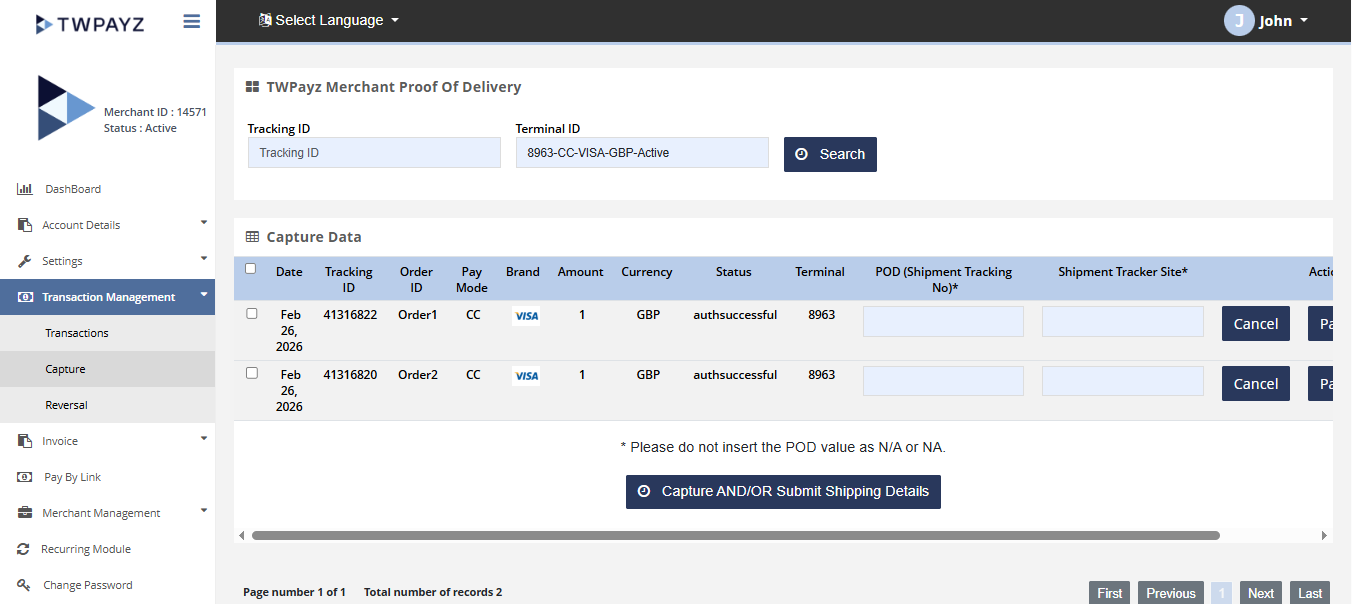
Search filter for cancel transaction
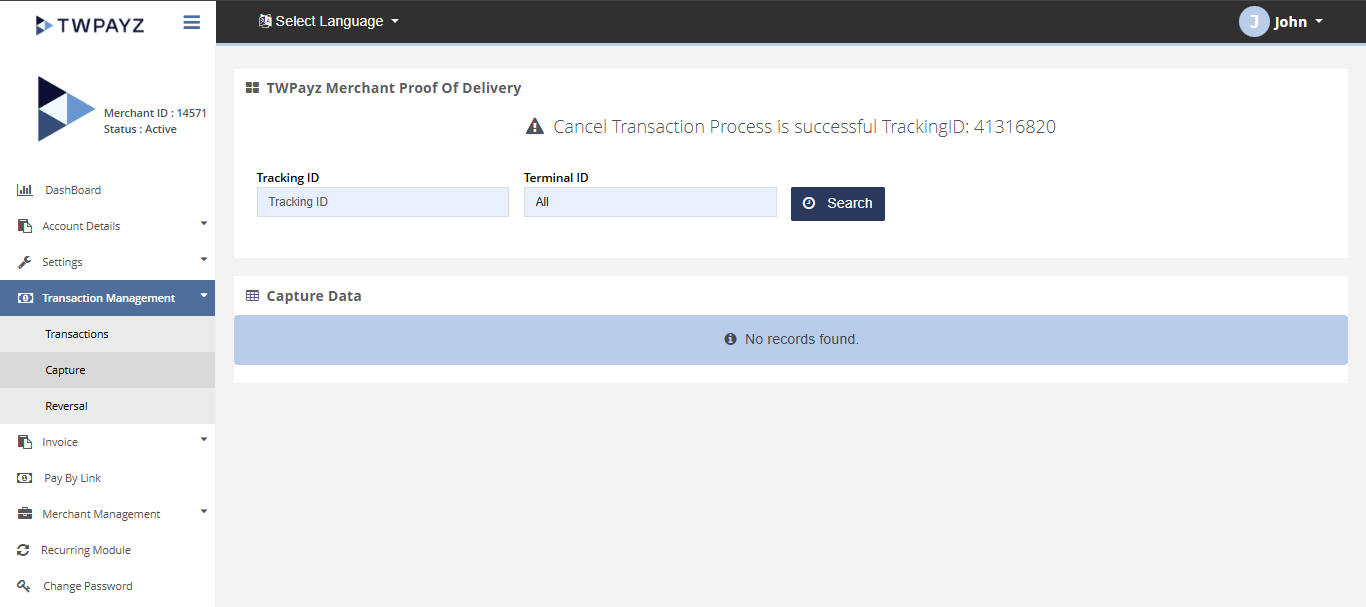
List of transaction to be cancelled
Reversal Transaction
The Reversal Transaction page allows merchants to reverse transactions that have already been successfully captured.
How to access pages?
After logging in to the Merchant Backoffice, click Reversal from the left-hand navigation menu to access the page.
Search criteria
You can search for transactions eligible for reversal using the following parameters:
- Tracking ID
- Terminal ID
- Order ID
How it works?
The search results will display a list of successfully captured transactions that are eligible for reversal.
To reverse a transaction:
- Search for and locate the desired transaction.
- Click the Reverse button corresponding to the transaction.
- Enter the reason for the reversal.
- Click Reverse to submit the request.
A confirmation message will be displayed indicating whether the reversal was processed successfully.
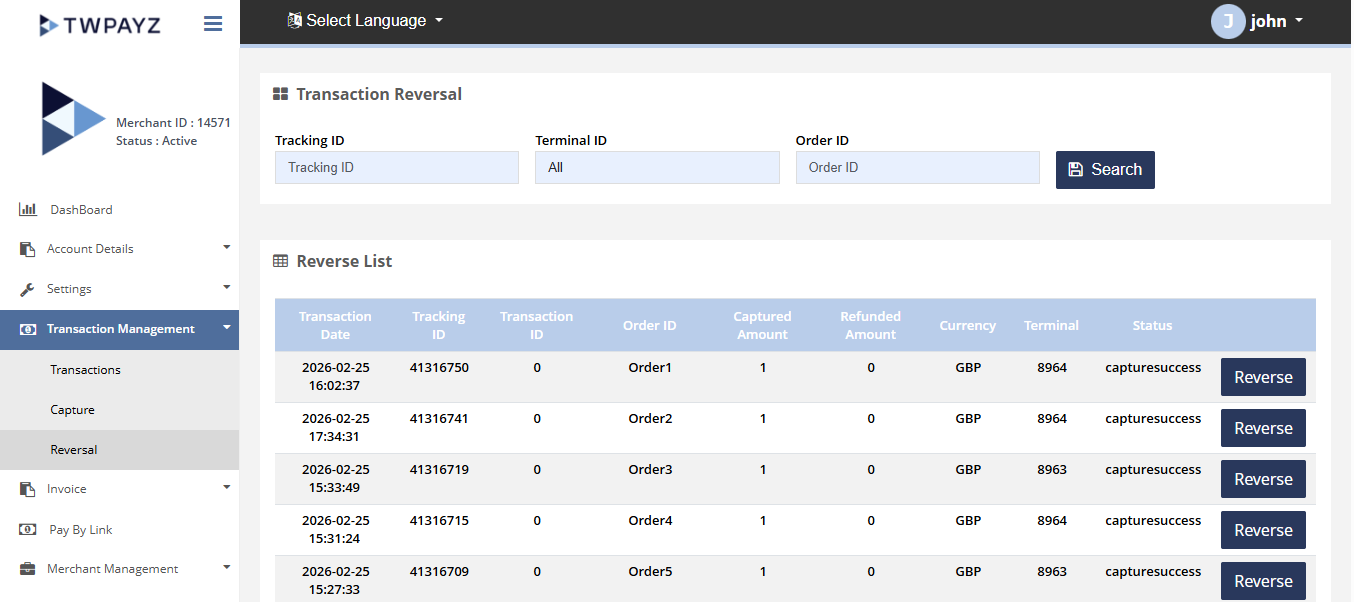
Transactions to be reversed
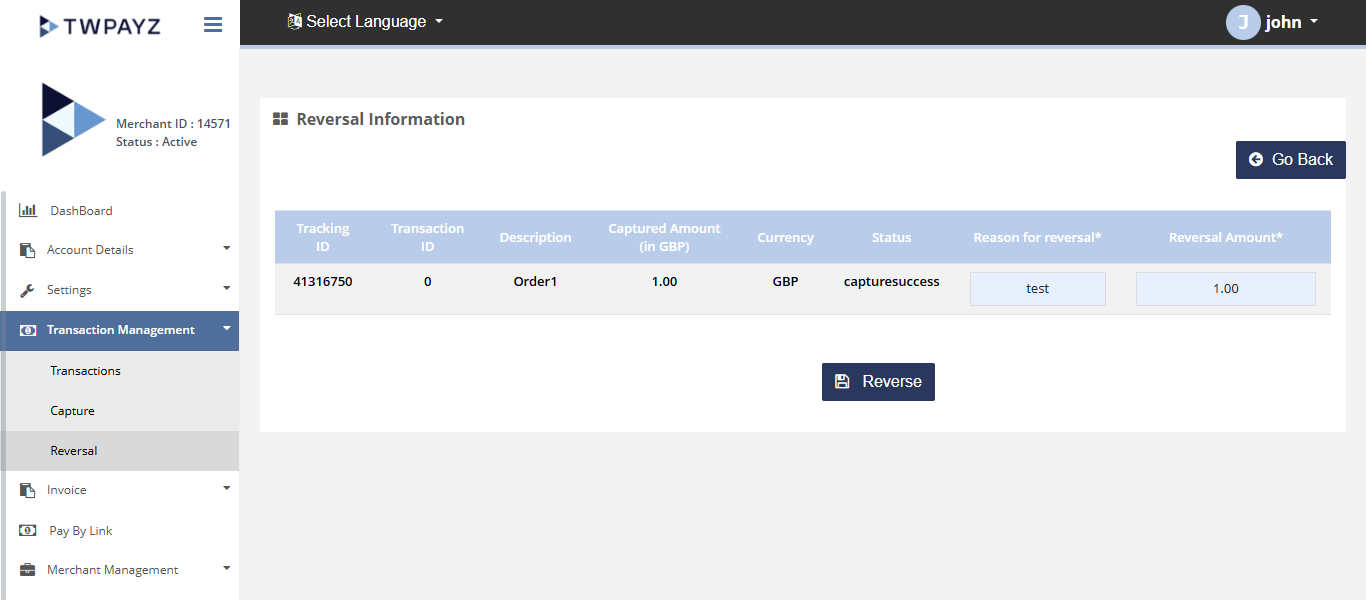
Transactions to be reversed