Settings
This section allows you to configure and manage the settings for the following functionalities:
Settings > Merchant Profile
The Merchant Profile page allows you to view and manage the information registered with TWPayz. You can review your merchant details and update them whenever necessary.
How to access page?
After logging in to the Merchant Backoffice, navigate to Settings in the left-hand navigation menu and click Merchant Profile to access the page.
Result details
It contains the below details:
- Basic Details
- Address Details
- Contact Details
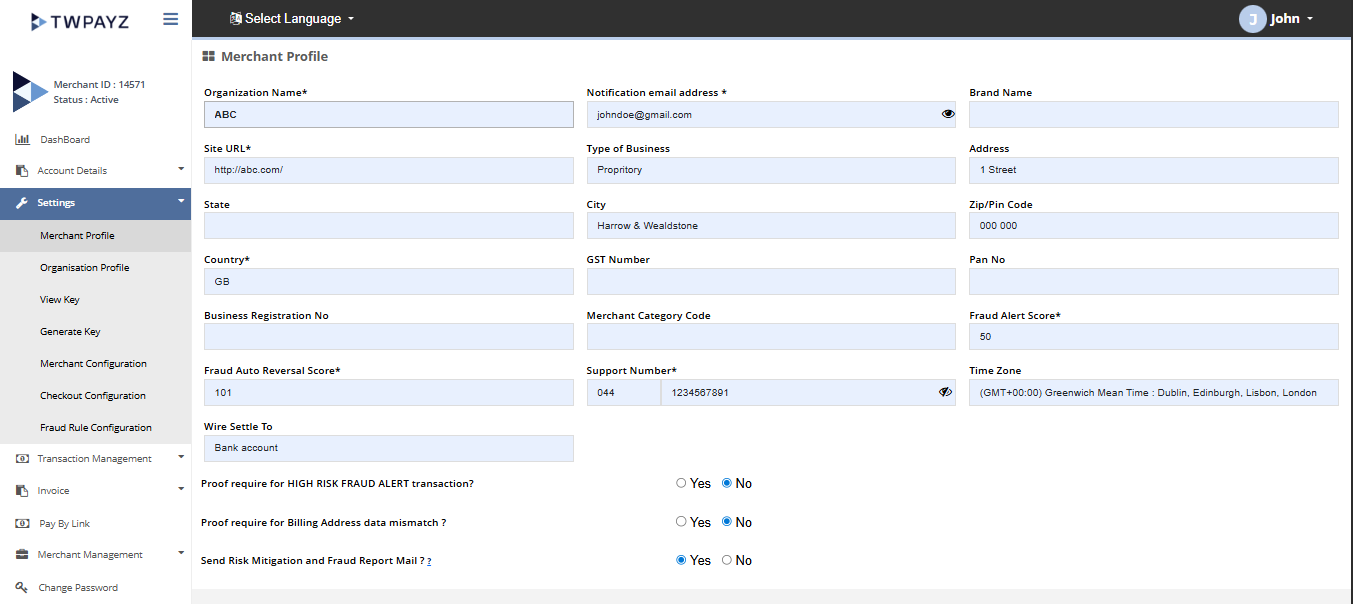
Merchant Profile Page
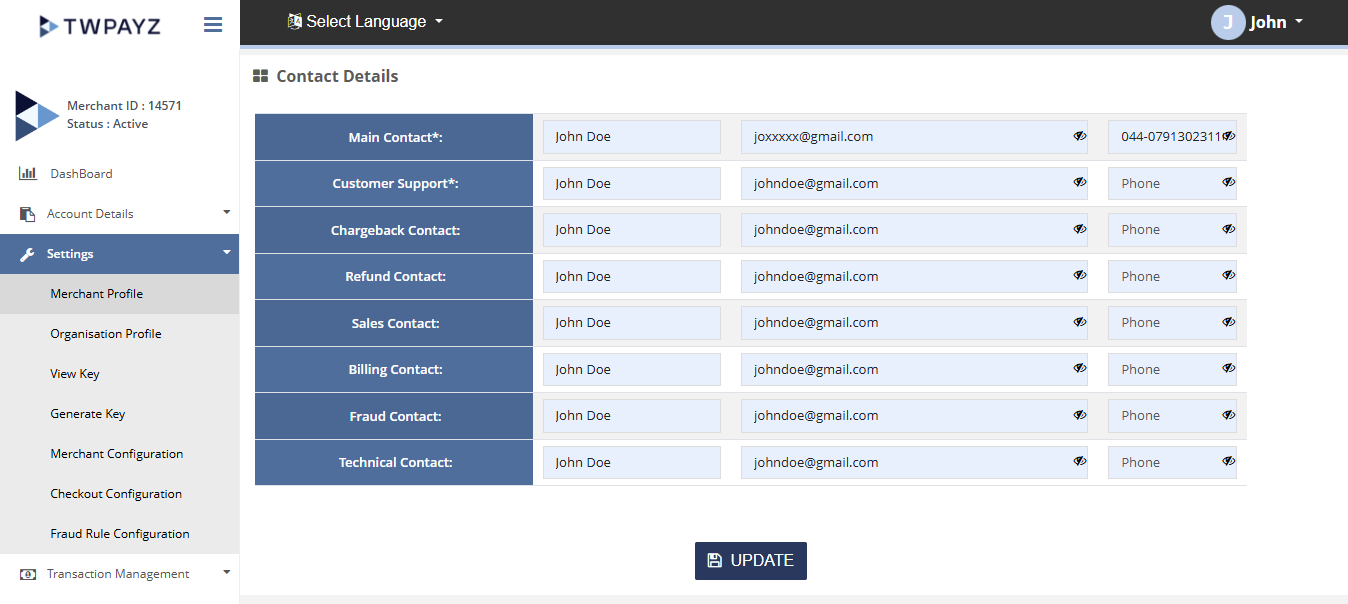
Merchant Profile Page
Settings > Organization Profile
The Organization Profile page allows you to view and manage your organization's information. You can retrieve the organization profile by selecting the appropriate company type and update the details as required.
How to access page?
After logging in to the Merchant Backoffice, navigate to Settings in the left-hand navigation menu and click Organization Profile to access the page.
Result details
The Organization Profile displays detailed information associated with the selected company type, including the organization's registered details and configuration settings.
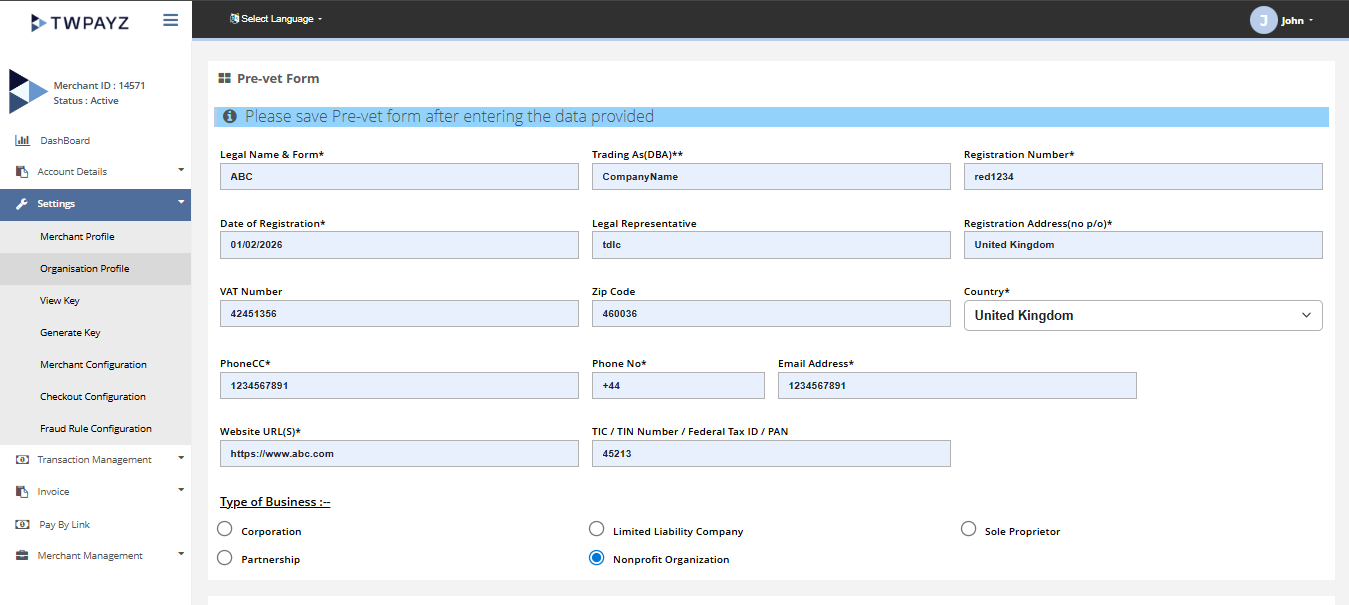
Organization profile
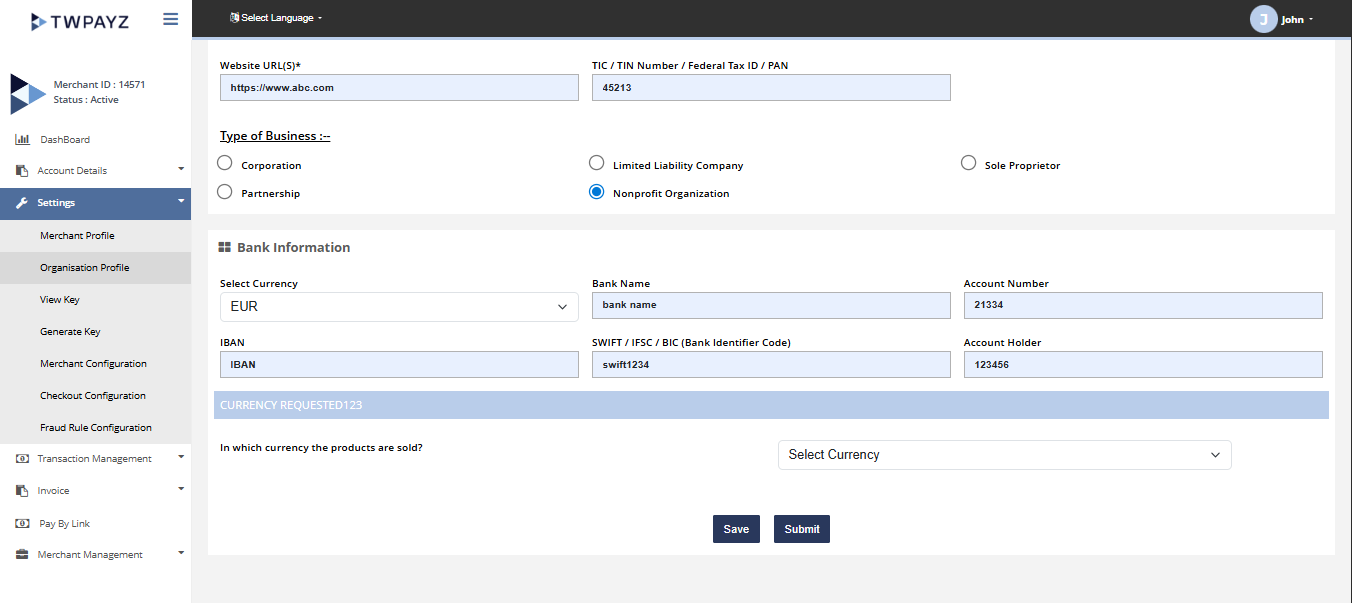
Organization profile
Settings > Generate Key
The Generate Key page allows you to manage your secret key, which is required for secure communication with the TWPayz Gateway Service. The secret key is essential for processing transactions through both the Standard Kit and Direct Kit integration methods.
How to access pages?
After logging in to the Merchant Backoffice, navigate to Settings in the left-hand navigation menu and click Generate Key to access the page.
Result details
This section displays your current secret key. To generate a new secret key, click the Generate Key button. Once generated, the new key will become active and should be used for all future transaction requests sent to the TWPayz Gateway Service.
Note: Keep your secret key confidential and do not share it with unauthorized parties, as it is used to authenticate and secure your transactions.
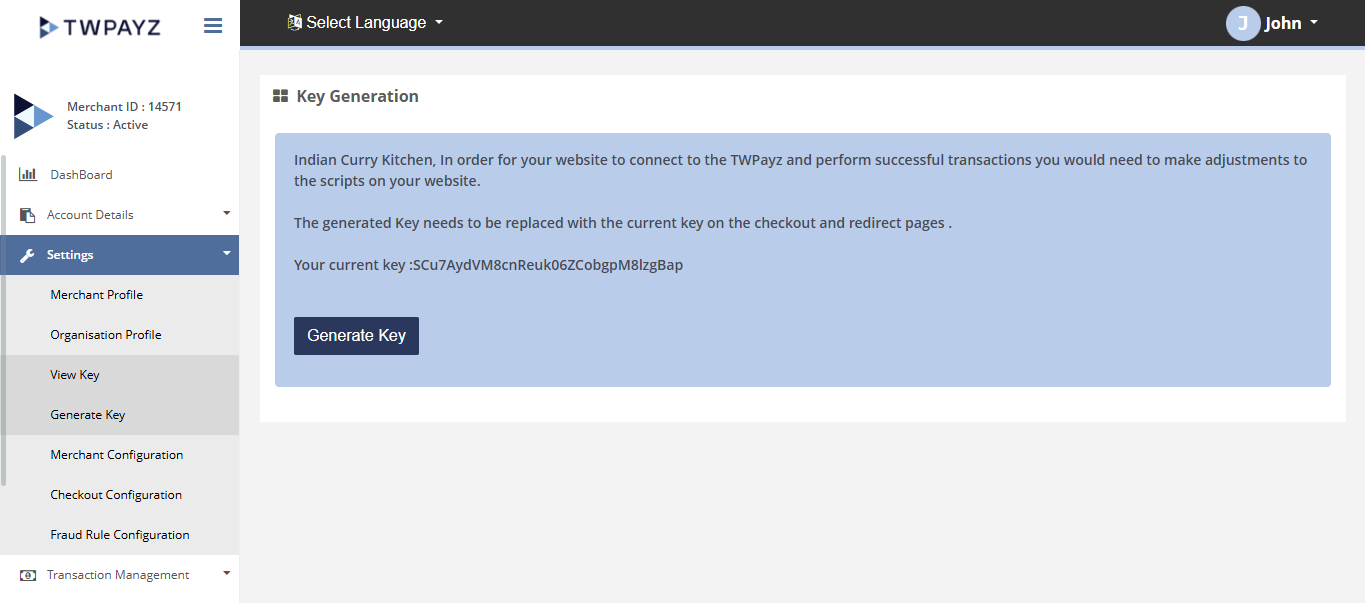
Generate key page
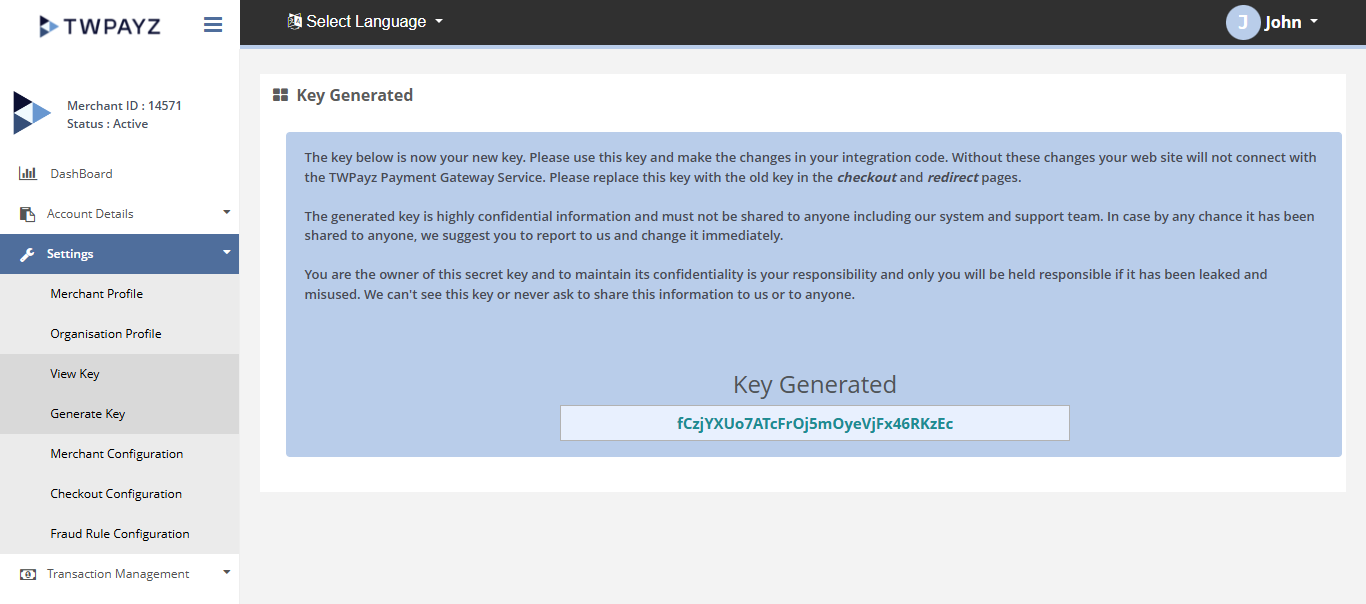
Generate key page
Settings > Merchant Configuration
The Merchant Configuration page allows you to view configuration settings associated with your merchant account. Configuration details can be retrieved based on the selected Terminal ID.
How to access pages?
After logging in to the Merchant Backoffice, navigate to Settings in the left-hand navigation menu and click Merchant Configuration to access the page.
Search criteria
To view configuration details, select the desired Terminal ID from the available options and perform the search. The system will display the corresponding merchant configuration information for the selected terminal.
Result details
After you chose a terminal, you can access the below configuration details.
- Profile Details
- Charges Details
- Account Details
- Account Limit
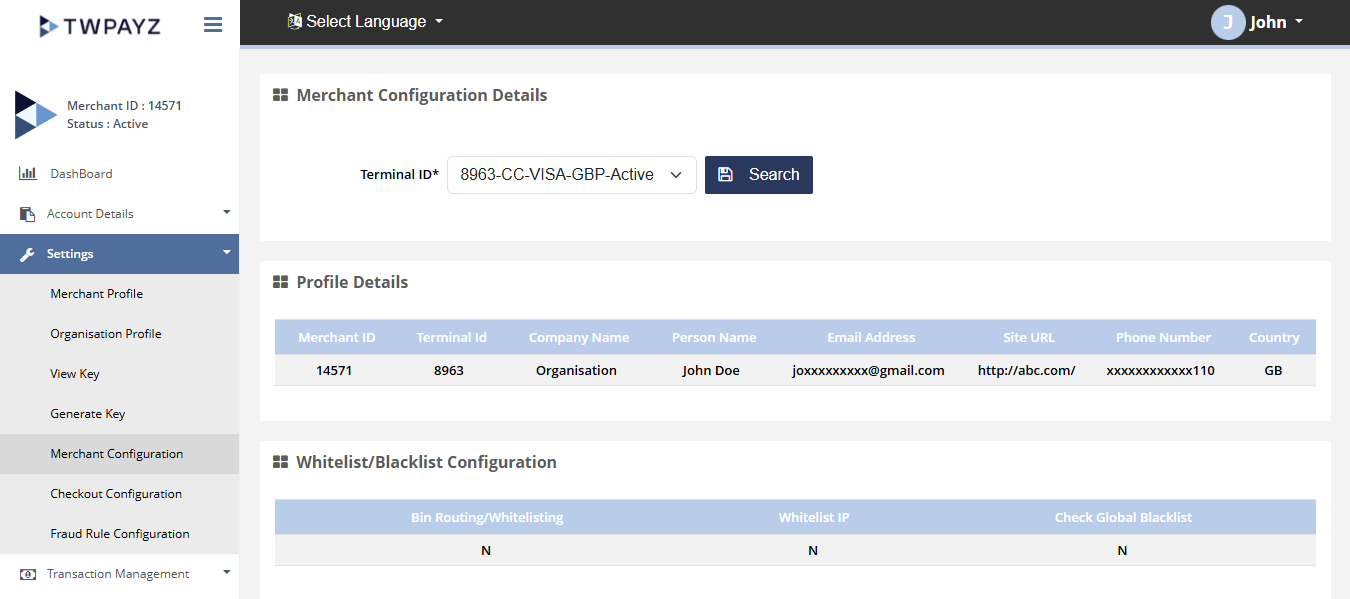
Left Navigation bar
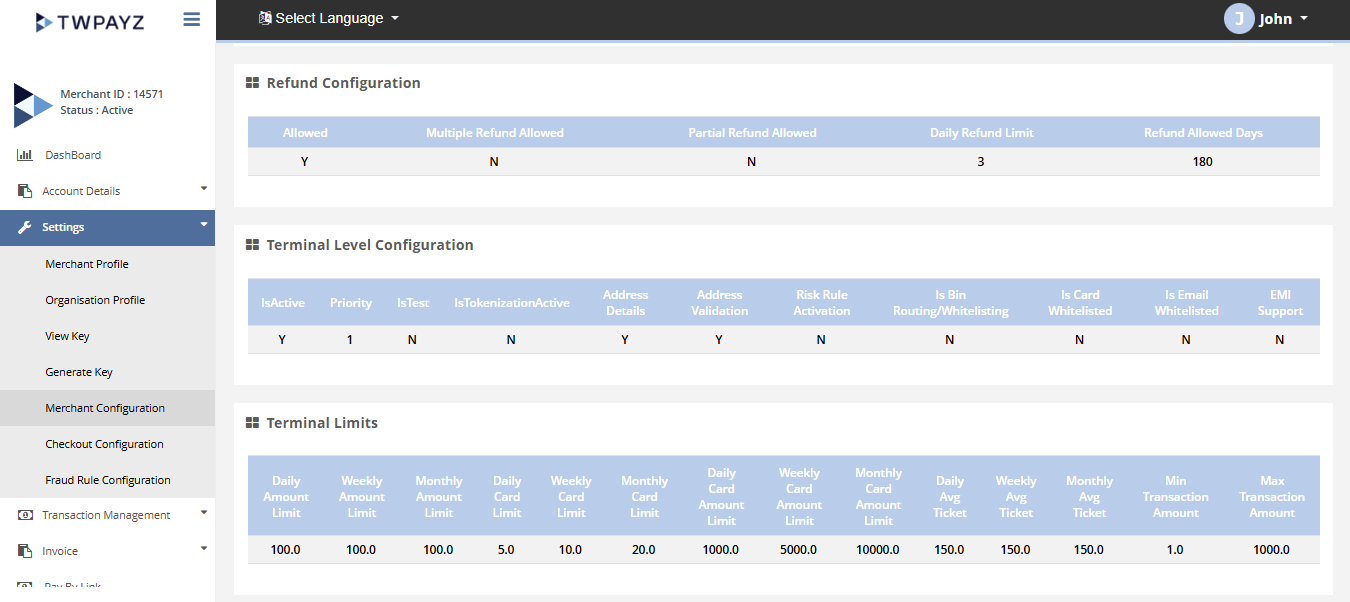
Member Config Details Search Filter
Settings > Fraud Rule Configuration
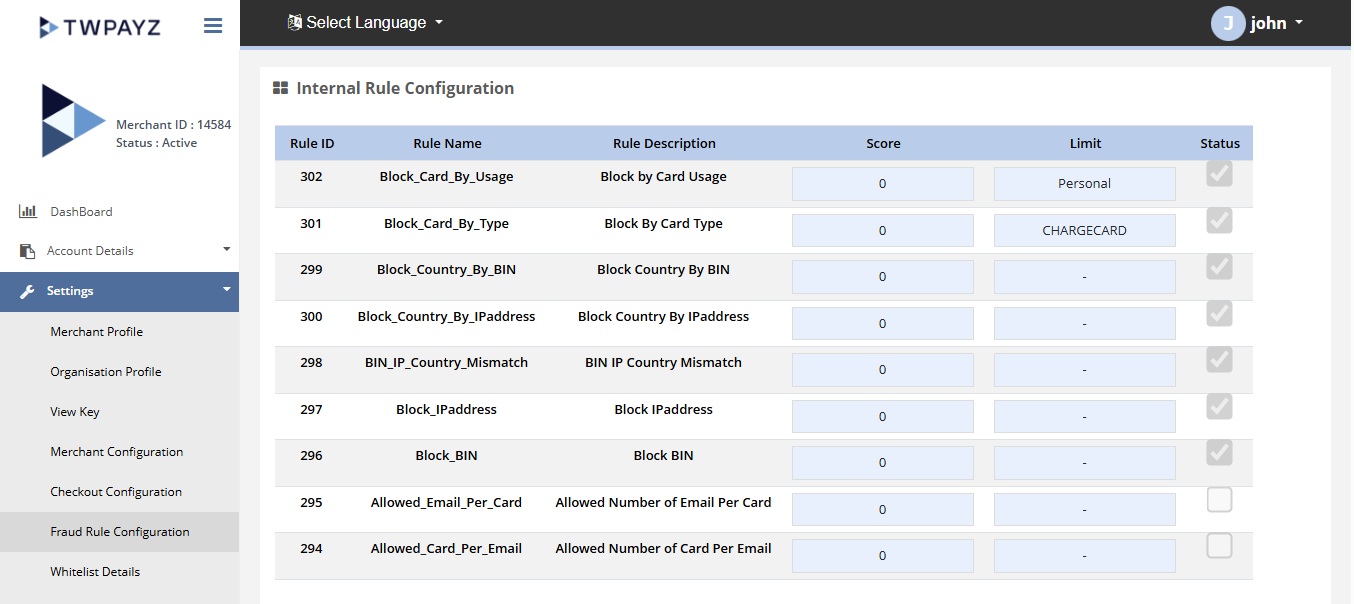
The Fraud Rule Configuration page allows you to view and manage fraud prevention rules configured for your merchant account. These rules help enhance transaction security by identifying and controlling potentially fraudulent activities.
How to access pages?
After logging in to the Merchant Backoffice, navigate to Settings in the left-hand navigation menu and click Fraud Rule Configuration to access the page.
Result details
This section displays the available fraud rules along with their respective scores and statuses. To update one or more rules, select the corresponding checkboxes, modify the required values, and click the Update Selected button to save the changes.