Merchant Management
This section allows you to manage user accounts and access permissions through the following functionalities:
Merchant Management > User Management
This section allows you to manage user accounts and access permissions through the following functionalities:
Add New User
The Add New User feature allows merchants to create additional user accounts for accessing the Merchant Backoffice.
How to access pages?
After logging in to the Merchant Backoffice, navigate to User Management from the left-hand navigation menu. Then click the Add New User button located at the top-right corner of the search section.
How it works?
Enter the following user details:
- Username
- Password
- Confirm Password
- Email Address
After providing the required information, click Submit to create the new user account.
Result Details?
Upon successful submission, a confirmation message will be displayed indicating that the user has been added successfully.
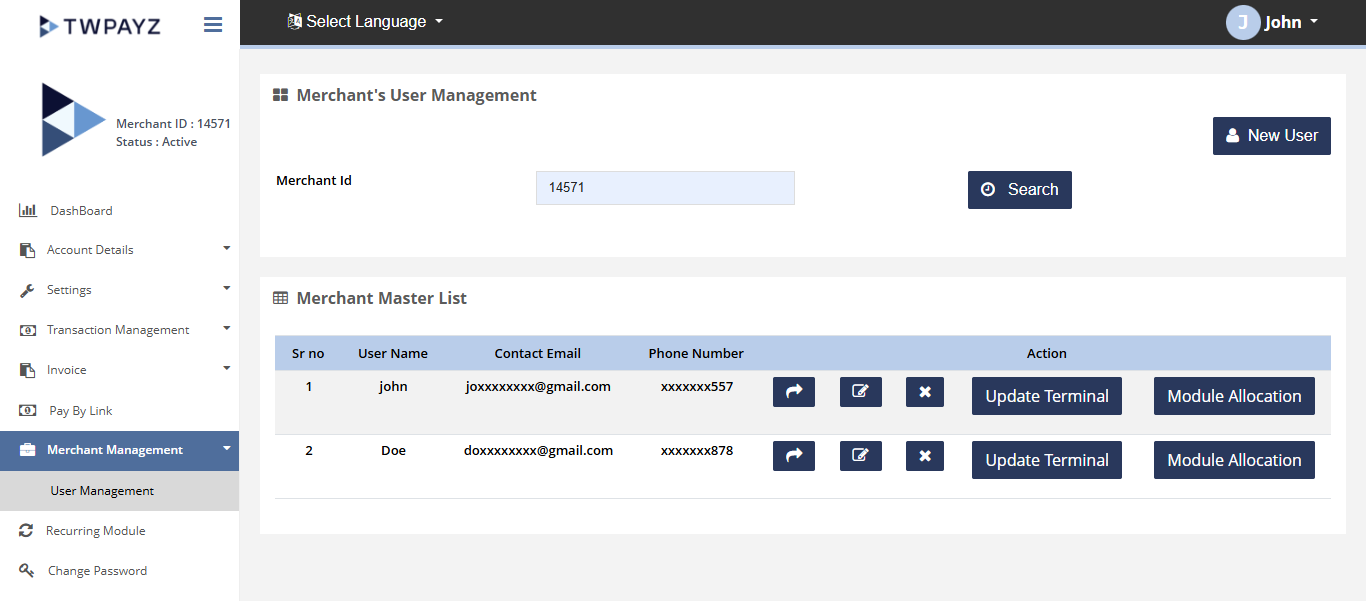
Merchant management search filter
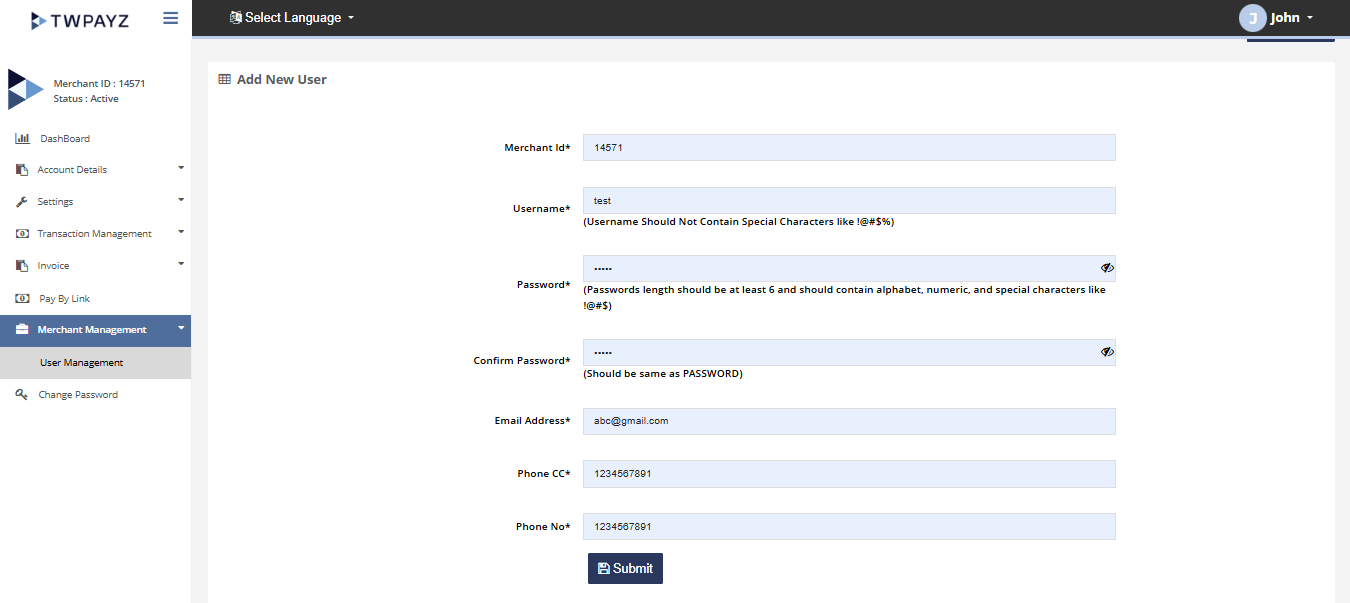
Add new user
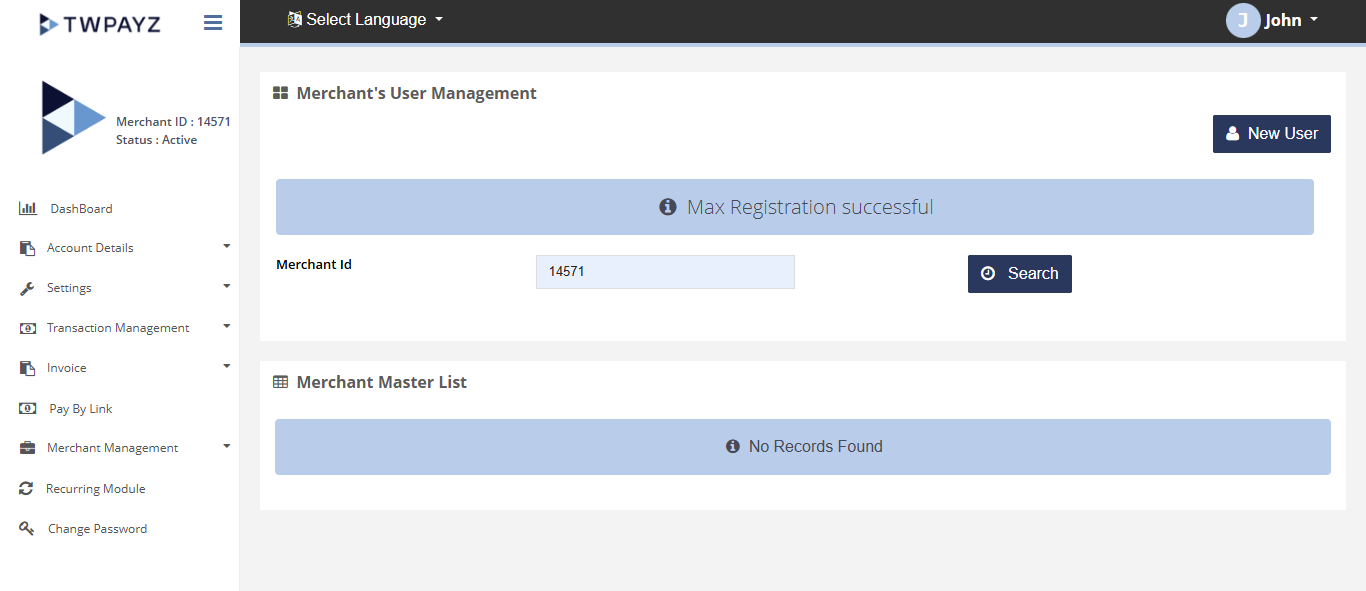
Fill the details
View User
The View User feature allows you to view detailed information about users associated with your merchant account.
How to access pages?
After logging in to the Merchant Backoffice, navigate to User Management from the left-hand navigation menu. Click Search to display the list of users, then select View next to the desired user to access their details.
Search criteria
You can search for users directly using the available search options. The Member ID field is pre-populated with your merchant account's Member ID and cannot be modified.
Result details
This page displays detailed information about the selected user, including account and contact details.
User details
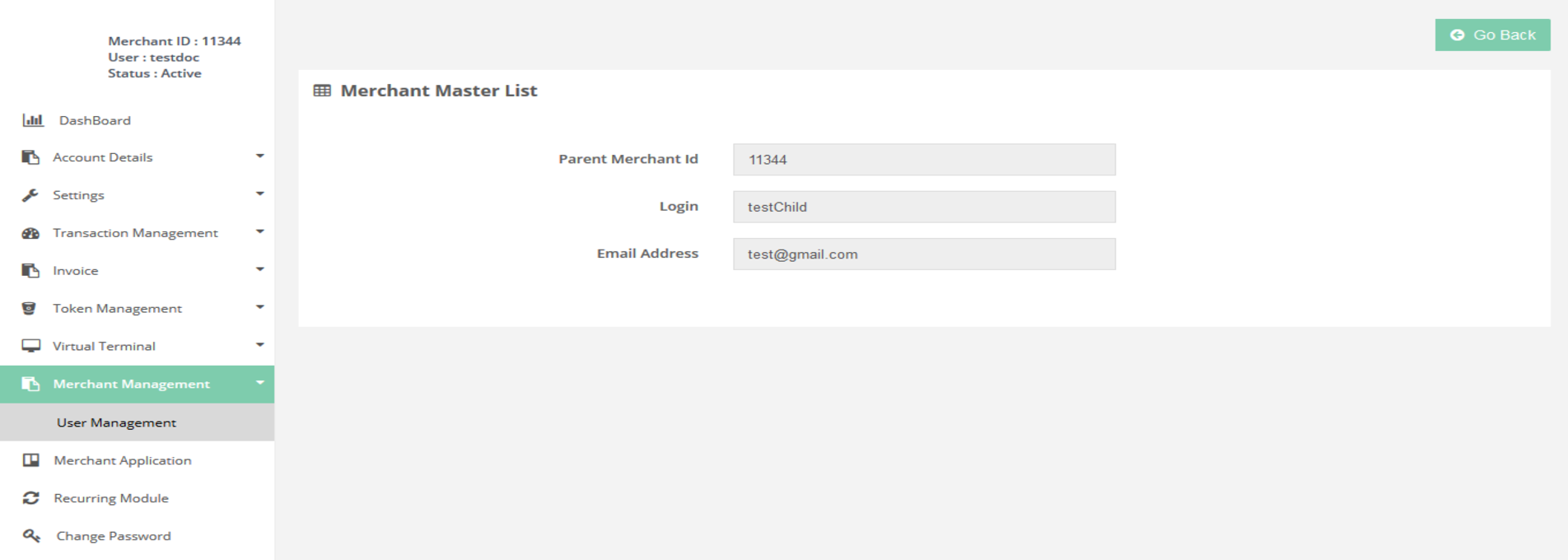
View user details
Edit User
The Edit User feature allows you to update and manage information associated with an existing user account.
How to access pages?
After logging in to the Merchant Backoffice, navigate to User Management from the left-hand navigation menu. Click Search to display the list of users, then select Edit next to the user whose details you want to modify.
Search criteria
You can search for users using the available search options. The Member ID field is pre-populated with your assigned Member ID and cannot be modified.
Result details
The Edit User page allows you to update the user's information and save the changes. Once the updates are submitted successfully, the modified user details will be reflected in the system.
User details
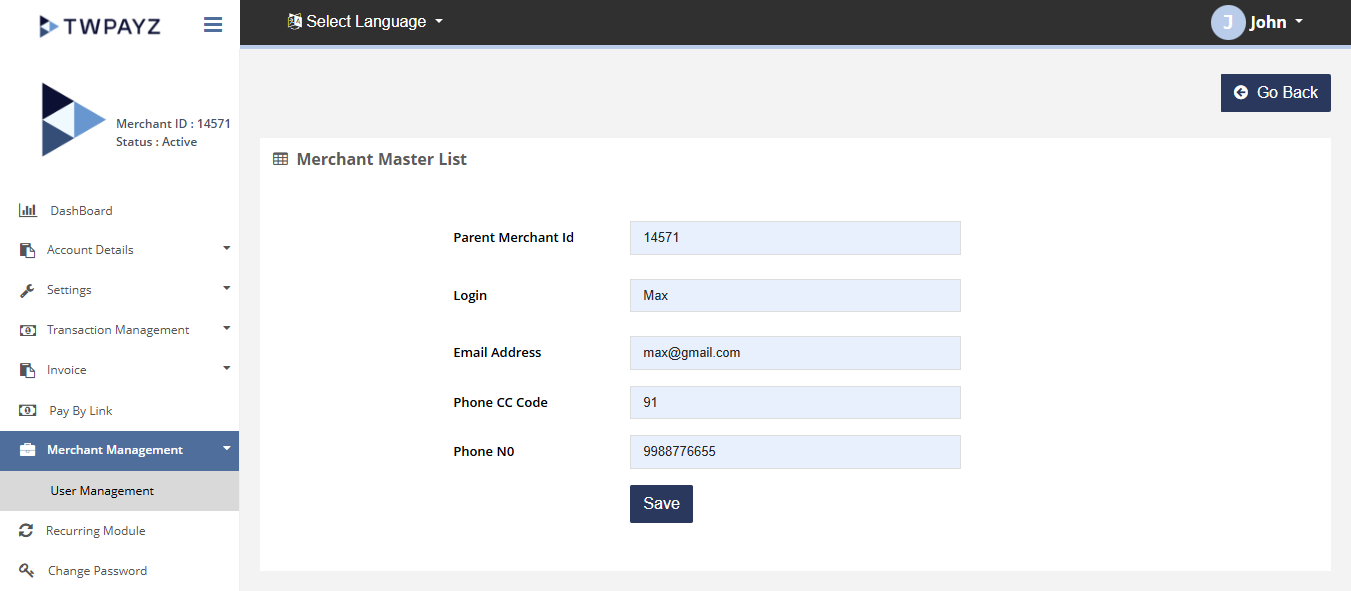
Edit user details
Delete User
The Delete User feature allows you to remove an existing user account from the Merchant Backoffice.
How to access pages?
After logging in to the Merchant Backoffice, navigate to User Management from the left-hand navigation menu. Click Search to display the list of users, then select Delete next to the user you wish to remove.
Search criteria
You can search for users using the available search options. The Member ID field is pre-populated and non-editable.
Result details
The Delete User functionality allows you to permanently remove a user account from the system. Once the deletion is confirmed and processed successfully, the user will no longer have access to the Merchant Backoffice.
User details
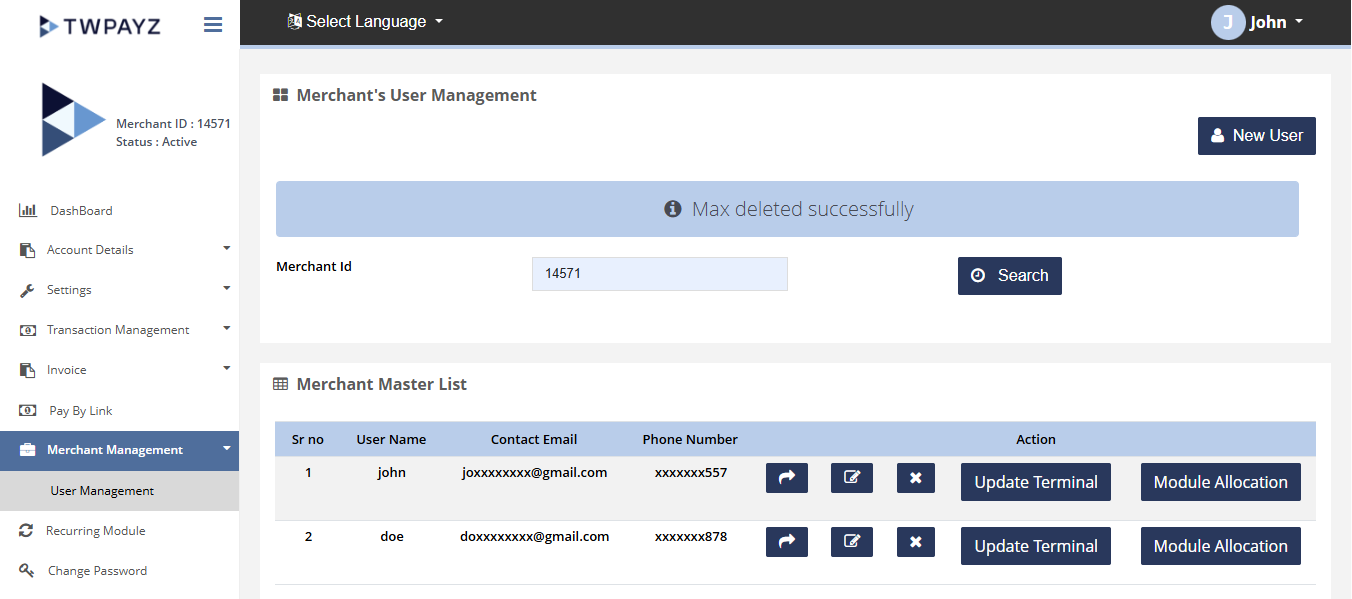
Delete user details
Add Terminal
The Add Terminal feature allows you to assign one or more terminals to a specific user, enabling them to access and manage transactions associated with those terminals.
How to access pages?
After logging in to the Merchant Backoffice, navigate to User Management from the left-hand navigation menu. Click Search to display the list of users, then select Add Terminal next to the desired user.
Search criteria
You can search for users using the available search options. The Member ID field is pre-populated with your assigned Member ID and cannot be modified.
Result details
The Add Terminal functionality allows you to allocate terminals to a selected user. Once assigned, the user will be able to access and perform operations for the allocated terminal(s) based on their permissions.
User details
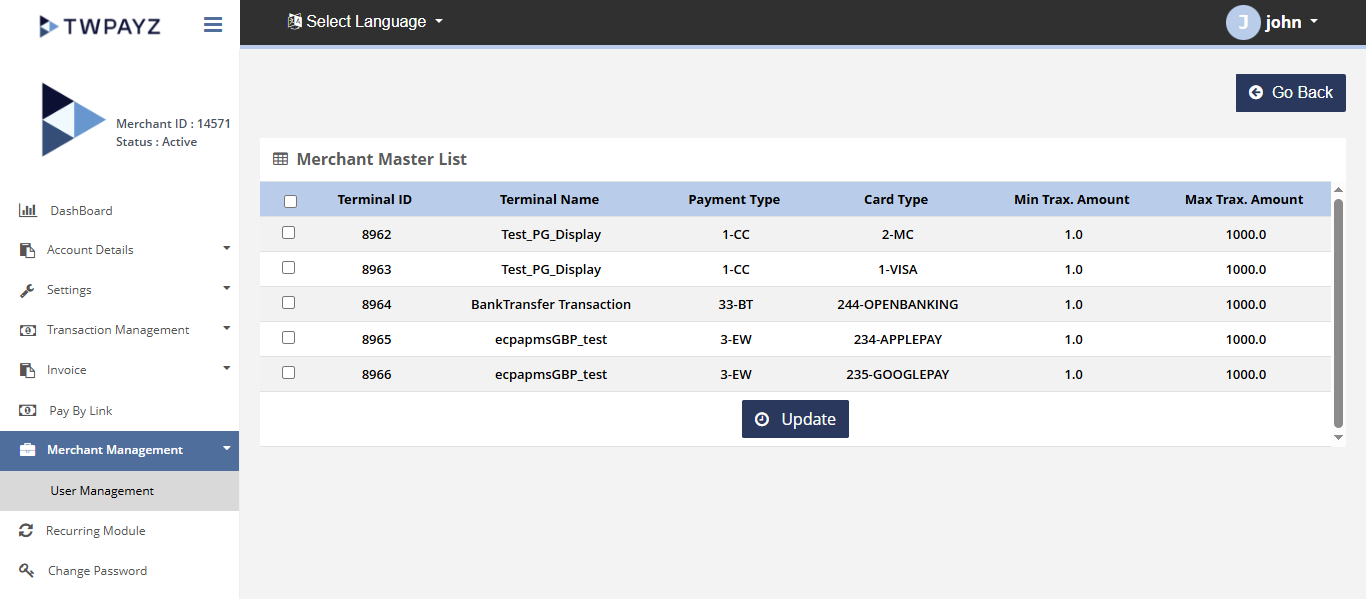
Allocate terminals to merchant
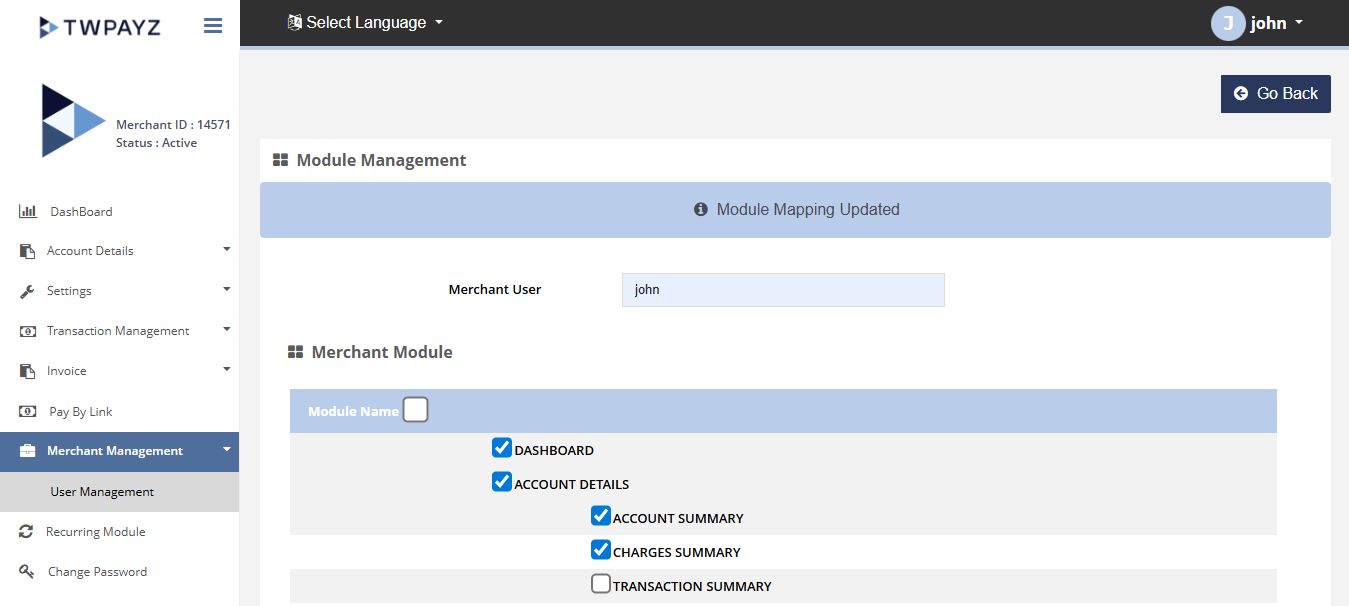
Module Allocation
The Module Allocation feature allows you to assign specific modules and functionalities to individual users, enabling controlled access to different areas of the Merchant Backoffice.
How to access pages?
After logging in to the Merchant Backoffice, navigate to User Management from the left-hand navigation menu. Click Search to display the list of users, then select Module Allocation for the desired user.
Search criteria
You can search for users using the available search options. The Member ID field is pre-populated with your assigned Member ID and cannot be modified.
Result details
The Module Allocation page allows you to assign or remove modules for a selected user. Once the allocation is saved, the user will have access only to the modules assigned to them, based on their permissions.
User details
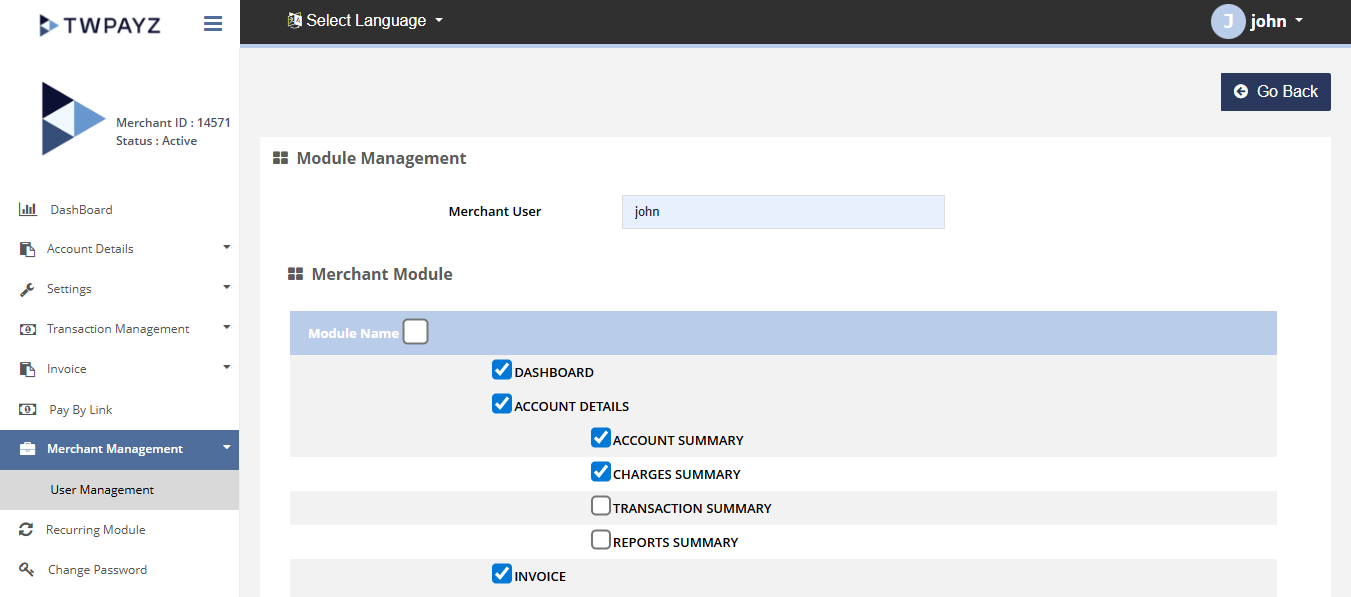
Allocate module to merchant