Select account
Selecting Your Business Account
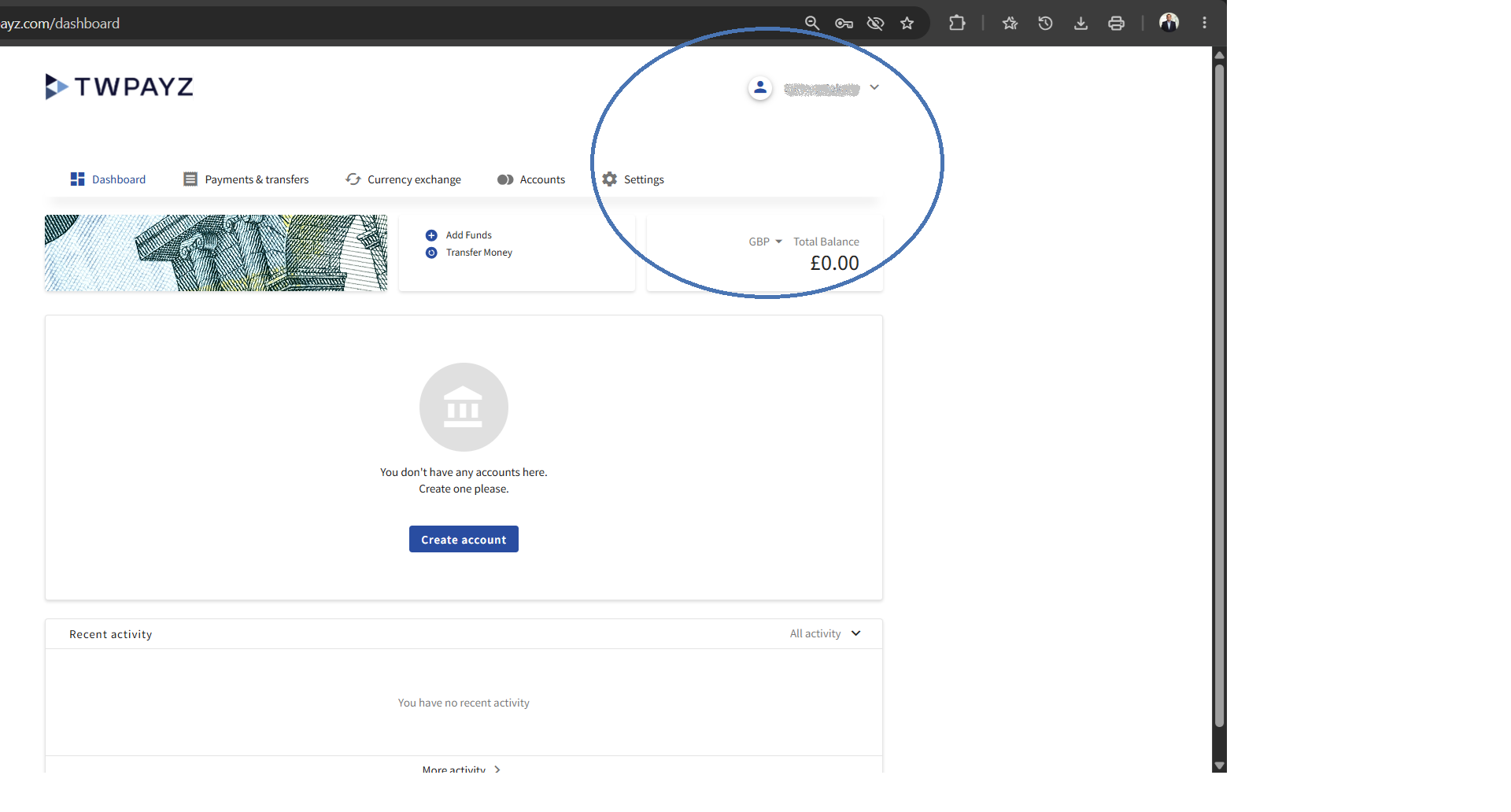
After signing in, you are initially logged in at the individual user level. Your business account data is not visible until you switch into it. Follow these steps:
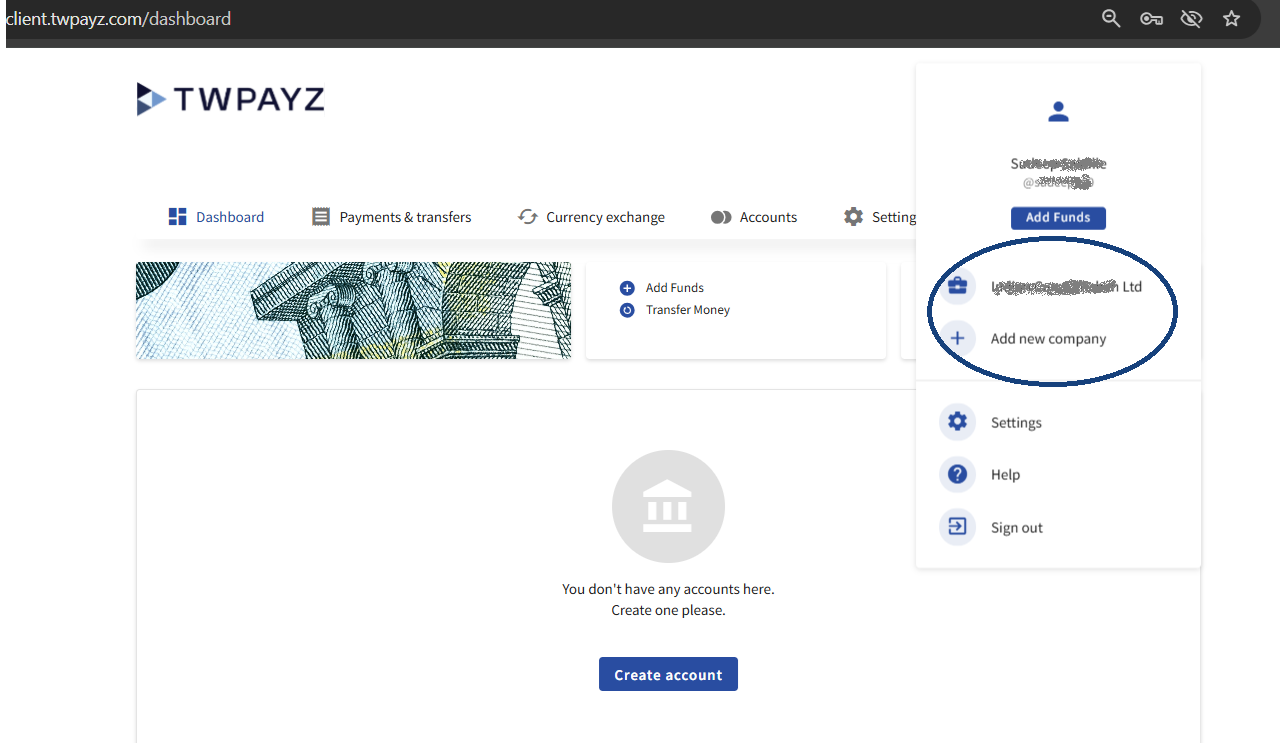
- 1Click your name or the briefcase icon in the top right-hand corner of the screen. A dropdown menu will appear.
- 2The dropdown lists your personal profile and any business accounts linked to your login. Click your company name to switch into the business account.
- 3The page reloads and your company name is shown in the top right corner, confirming you are now in the business account.
- 4You can switch back to another account at any time by clicking the company name and selecting a different account from the same dropdown.
If you manage more than one business account under the same login, make sure you have selected the correct company name before making any payments.
First-Time Security Setup
Important: Complete both steps below immediately on your first login, before making any payments. This protects your account and funds.
Step 1 — Reset Your Password
Your welcome letter contains a temporary password. You must change this to a private password that only you know.
- 1After signing in and selecting your business account, click Settings in the top navigation bar.
- 2Navigate to your profile and find the password change section.
- 3Enter your current (temporary) password in the first field, then choose your new password. A strong password is at least 12 characters long and includes uppercase letters, numbers, and symbols.
- 4Save the change. Your new password takes effect immediately.
Step 2 — Enable Two-Factor Authentication (2FA)
Two-Factor Authentication requires you to enter a time-sensitive one-time code from your mobile phone every time you log in. This means even if someone obtains your password, they cannot access your account without your phone.
- 1Download a free authenticator app on your mobile phone. We recommend Google Authenticator, Microsoft Authenticator, or Authy.
- 2In the portal, go to Settings and find the Two-Factor Authentication or Security section.
- 3A QR code will be displayed on screen. Open your authenticator app, tap the option to add a new account, and scan the QR code. Alternatively, tap "Enter code manually" in the app and type the code shown on screen.
- 4Your authenticator app will immediately begin generating 6-digit codes that refresh every 30 seconds. Enter the current code into the portal to confirm the setup.
- 52FA is now active. Every future login will prompt you for a code from your authenticator app after your email and password.
Keep your authenticator app safe. If you lose access to your phone, contact support immediately. Do not delete the authenticator app without first disabling 2FA in Settings.